Apple has published new developer documentation detailing how macOS automatically adapts its desktop user interface when responding to direct touch input on laptop displays. The framework guidelines outline system behavior designed to ensure traditional desktop controls remain precise and usable without compromising the desktop experience.
By implementing adaptive sizing, context-sensitive target expansion, and touch-aware spatial gestures, Apple aims to bridge the gap between pointer-driven precision and direct display interaction. The technical details come as Apple releases macOS updates featuring touch frameworks, paving the way for touch-capable Mac hardware.
macOS touchscreen ui controls macbook pro
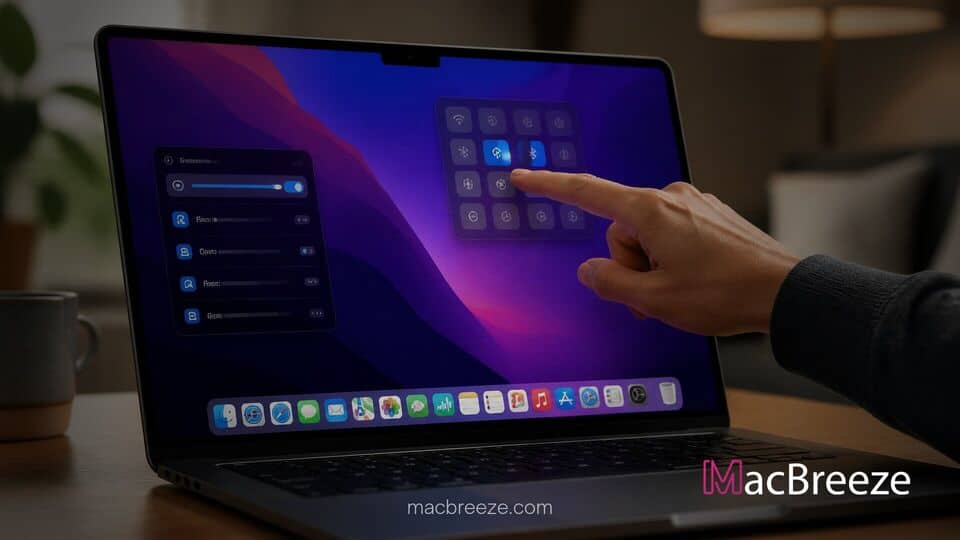
Apple provided an overview explaining how macOS touchscreen ui controls macbook pro displays will operate seamlessly alongside traditional trackpad and mouse navigation. Rather than replacing pointer interactions with a mobile-style interface, macOS dynamically shifts control elements when fingers approach or touch the display surface, keeping standard Mac workflows fully intact.
macOS Interface Adapts for Touch Input
The core philosophy behind Apple's touchscreen strategy relies on adaptive user interface scaling rather than a complete redesign of the operating system. Traditional desktop operating systems often present challenges for touch interaction due to small window control buttons, tight menu spacing, and precise cursor targets built around mouse input.
To resolve these friction points, macOS incorporates intelligent input detection that monitors active user interaction. When input originates from a physical keyboard or precision trackpad, UI controls maintain their standard compact dimensions. However, when a touch gesture is detected on the primary display, the operating system instantly adjusts UI padding, target hitboxes, and active control boundaries to accommodate human fingers.
Dynamic Expansion for Menu Items and Window Controls
Under the newly detailed guidelines, individual UI components undergo targeted transformations. Menu bar items, drop-down lists, and contextual menus dynamically expand their vertical spacing when activated via screen touch. This temporary expansion increases the effective touch area without crowding the screen during keyboard or trackpad navigation.
Window controls, such as the classic close, minimize, and zoom buttons, benefit from expanded invisible touch zones. While the visual icons retain their crisp, compact design, the clickable boundary surrounding them expands slightly upon finger approach. This prevents accidental dismissals or incorrect window resizing. Form controls like checkboxes, radio buttons, and slider thumbs also expand slightly to ensure tap accuracy, aligning with recent rumors that Apple may reveal redesigned OLED MacBook Pros tailored for enhanced visual clarity.
Interactive Dynamic Island and Dock Gestures
The system extends touch interaction to familiar macOS layout elements, including the Dock and menu bar status items. On touch-enabled displays, swiping up from the bottom edge of the screen can reveal or temporarily lock the macOS Dock, while direct taps on status items open expanded menu cards engineered for easy finger tapping.
For laptops featuring screen cutouts or camera notch areas, the macOS interface adapts using an interactive top status bar similar to the iPadOS and iOS Dynamic Island. Direct touch interactions on this status bar expand active background activities, such as media playback, ongoing airplay streams, or timer counts, into actionable widgets right under the user's finger.
Accessibility and Touch Settings Customization
Recognizing that touch interaction varies among users, Apple has integrated dedicated configuration settings into System Settings under Accessibility and Input. Users will be able to customize touch target responsiveness, adjust touch hold duration, and control the exact visual scaling behavior of menu elements.
For creative professionals working in video editing, design, or audio production software, macOS permits app-specific overrides. Users can disable touch input completely within select pro applications to prevent unintended canvas adjustments, or restrict touch gestures strictly to secondary controls and tool palettes.
Availability and Software Support Context
Developer APIs for touch target adapting are now available in early testing builds, allowing Mac developers to optimize custom UI controls for high-precision touch performance. App developers using Catalyst or SwiftUI can adopt these dynamic scaling rules automatically with minimal code modifications.
Industry analysts have long anticipated Apple's move toward touch-capable Mac hardware, especially as display technology shifts toward advanced panels. With reports showing a shift in MacBook Pro display technology and hardware leaks suggesting a redesigned MacBook Pro with vapor chamber cooling, software preparation marks the final step toward hardware readiness.
As Apple continues to refine software integration across its lineup, these detailed UI guidelines show how macOS will preserve its traditional desktop heritage while welcoming touch interaction in a practical, unified way.