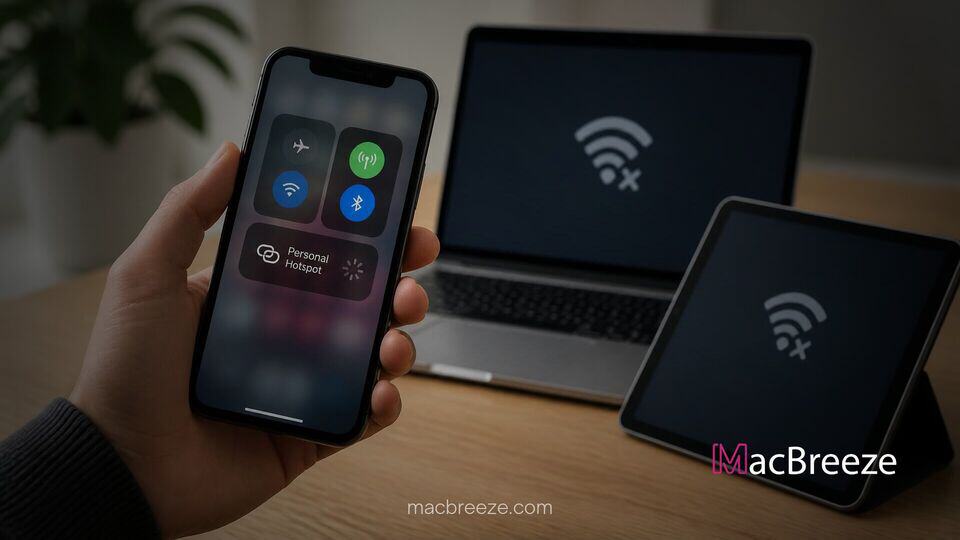
Struggling with tethering issues can turn a quick online task into an infuriating experience, especially when you need reliable cellular data sharing on the go. If you are looking to fix iPhone personal hotspot not working properly or dropping connections continuously, this guide provides tested solutions to restore your mobile internet bridge.
Hotspot failures on iOS generally occur due to misconfigured network configurations, software bugs, outdated carrier settings, or strict cellular data limits. In other cases, auto-lock power features or wireless frequency mismatches trigger spontaneous disconnections shortly after establishing a connection.
Step-by-Step Fixes for iPhone Personal Hotspot Issues
Before diving into complex troubleshooting methods, complete these quick pre-checks to ensure your device meets standard connectivity requirements:
- Ensure your cellular data subscription includes mobile hotspot features and has not exceeded its monthly usage threshold.
- Check that Wi-Fi and Bluetooth are enabled on your iPhone to allow wireless tethering signals to broadcast.
- Bring the connecting device within close physical range (less than 10 feet) of your iPhone.
- Disconnect your iPhone from any active Wi-Fi networks so it relies entirely on cellular data.
Toggle Cellular Data and Hotspot Settings
Refreshing your wireless interface resets temporary network glitches that prevent secondary devices from locating your tethering broadcast.
- Open Settings on your iPhone and tap Cellular (or Mobile Data).
- Toggle the switch next to Cellular Data to off, wait 10 seconds, and turn it back on.
- Select Personal Hotspot and turn off Allow Others to Join.
- Wait several seconds, then toggle Allow Others to Join back on to restart the signal broadcast.
Verify Carrier Settings and Data Plan Compatibility
Outdated carrier configurations can prevent your phone from authenticating hotspot connections with your network provider.
- Navigate to Settings > General > About.
- Wait for 15 to 30 seconds on this screen; if an updated carrier profile is available, a prompt reading Carrier Settings Update will appear automatically.
- Tap Update to install the latest network configuration settings.
- If your primary Wi-Fi connection is also dropping during network testing, review our guide on how to fix iPhone Wi-Fi connection issues to eliminate broader signal faults.
Reset Network Settings on iPhone
Resetting network parameters removes corrupted Wi-Fi configurations, cellular profiles, and saved passwords that interfere with tethering functions.
- Launch Settings and tap General.
- Scroll to the bottom and select Transfer or Reset iPhone.
- Tap Reset at the bottom of the screen, then choose Reset Network Settings.
- Enter your device passcode and confirm the operation. Your iPhone will reboot automatically.
Force Restart Your iPhone
A forced hardware restart flushes system cache memory and terminates stuck background services causing wireless radio failures.
- For iPhone 8 and later (including Face ID models): Press and quickly release Volume Up, press and quickly release Volume Down, then press and hold the Side Button until the Apple logo appears.
- For iPhone 7 series: Press and hold the Volume Down and Sleep/Wake buttons simultaneously until the screen reboots.
- Allow your device to boot up fully, re-enable Personal Hotspot, and test your connection stability.
- If your device experiences recurring system boot issues during restarts, check our tutorial on fixing iPhone random restart problems.
Common Causes of iPhone Personal Hotspot Failures
Understanding why your hotspot disconnects or fails to establish a stable link helps prevent recurring issues down the road. Most tethering disruptions stem from a few primary triggers:
- iOS Power Savings: When the iPhone screen turns off or locks, iOS automatically reduces wireless broadcast power to preserve battery life, which often drops idle connected clients.
- Frequency Incompatibility: Older laptops and peripheral devices cannot always connect to 5 GHz Wi-Fi signals produced by modern iPhones without adjusting signal compatibility settings.
- Corrupted Network Caches: System updates or bad cellular tower handoffs can leave behind invalid network tokens that corrupt hotspot handshakes.
- Hardware and Wireless Interference: Other Bluetooth gadgets, smart accessories, or external wireless peripherals can cause severe packet drops during data transfers. If you suspect nearby accessories are interfering with radio chips, see our troubleshooting guide for fixing iPhone Bluetooth connection issues.
Fixing Connection Drops on Mac, PC, and iPad
If your hotspot connects but disconnects every few minutes, targeted adjustments on both the host iPhone and receiving client device can stabilize your session.
- Enable Maximize Compatibility: On iPhone 12 and newer models, navigate to Settings > Personal Hotspot and toggle on Maximize Compatibility. This forces the iPhone to broadcast on the 2.4 GHz frequency instead of 5 GHz, dramatically improving connection stability for older devices.
- Connect via USB Cable: Avoid wireless interference altogether by tethering directly. Connect your iPhone to your Mac or PC using a certified Lightning or USB-C cable. On your Mac, select your iPhone under network interfaces; on Windows, ensure iTunes is installed to provide the necessary USB tethering drivers.
- Adjust Screen Auto-Lock: Prevent iOS from putting wireless radios into low-power mode by setting Settings > Display & Brightness > Auto-Lock to Never while sharing internet data.
Preventing Future Hotspot Disconnections
Maintaining a reliable hotspot setup requires proactive software maintenance and smart settings management. Keep your iOS software fully updated to receive official modem firmware patches and performance improvements. Additionally, keep your iPhone connected to a charger during prolonged hotspot sessions to prevent power-saving background throttles, and limit the number of active clients on your mobile network.
Following these steps will help you fix iPhone personal hotspot not working errors quickly whenever internet sharing fails. By resetting corrupted network caches, enabling compatibility modes, and managing power settings, you can maintain a fast and stable mobile tethering connection whenever you need it most.