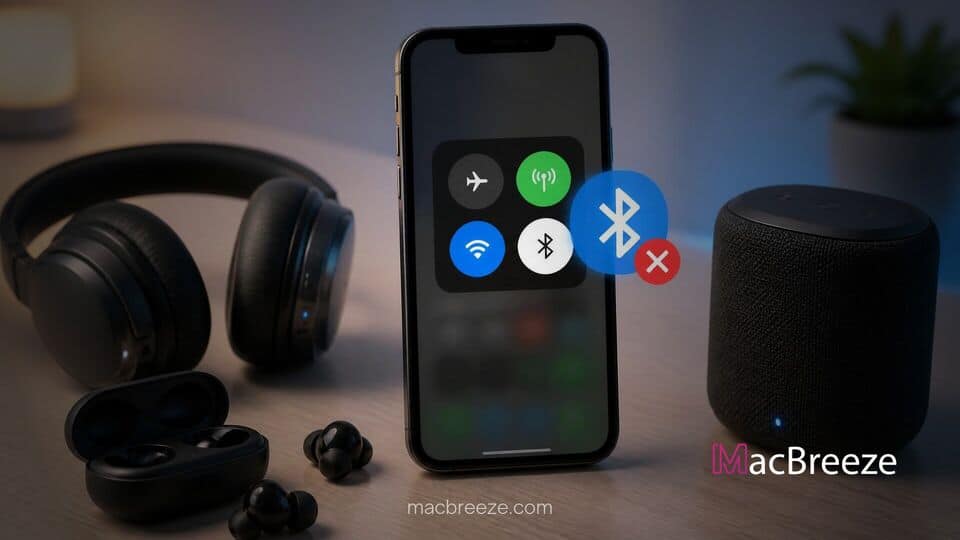
Struggling with wireless accessories that refuse to sync with your iOS device can be extremely frustrating during your daily routine. In this detailed guide, you will learn how to fix iphone bluetooth not connecting pairing issues quickly using proven troubleshooting steps.
Bluetooth connectivity relies on smooth communication between your iPhone's network stack and the target device's software firmware. Common culprits for connection failures include temporary operating system glitches, outdated device firmware, physical signal interference, and corrupted network settings on your iPhone.
Common iPhone Bluetooth Connection and Pairing Problems
Wireless connection errors often manifest in specific ways across different accessories, whether you are trying to sync wireless earbuds, smartwatches, or automotive infotainment head units. Identifying the exact symptom helps determine whether the issue stems from software glitches, peripheral hardware timeouts, or system-wide radio interference.
Bluetooth Device Not Showing Up in Settings
One of the most frequent headaches occurs when a nearby accessory fails to appear under the Other Devices list inside your iPhone's Bluetooth menu. This usually happens when the accessory is not actively in discovery mode, is currently linked to another nearby phone, or when your iPhone's wireless scanning daemon experiences a temporary freeze.
Frequent Disconnections and Audio Stuttering
Even after a successful initial pairing, you might encounter unexpected audio dropouts, static crackling, or immediate disconnections after a few seconds. Much like when addressing iPhone Wi-Fi connection issues and frequent drops, unstable Bluetooth performance often traces back to local radio signal congestion, low accessory battery power, or corrupted local cache files on iOS.
Why Your iPhone Fails to Pair With Bluetooth Accessories
Understanding the root cause behind pairing errors saves valuable time during troubleshooting. Most wireless failures fall into one of three main categories: software conflicts, hardware limitations, or operational oversights.
On the software side, minor iOS bugs can prevent your phone from initializing new encryption keys during pairing. Firmware mismatches between older accessories and modern iOS protocols are another common trigger. Hardware factors—such as physical barriers blocking the 2.4 GHz spectrum or low battery voltage—can also weaken signal reception. Lastly, forgetting to clear previous pairings before attempting a new link often leaves the target accessory locked to another host device.
Effective Solutions to Fix iPhone Bluetooth Not Connecting or Pairing Errors
Before diving into complex settings modifications, work through these fundamental preliminary checks to eliminate standard operational oversights:
- Ensure your Bluetooth accessory is fully charged or connected to a working power source.
- Verify that the accessory is placed within 3 to 5 feet of your iPhone during the pairing process.
- Confirm that the accessory is actively set to Pairing/Discovery Mode according to its manufacturer manual.
- Turn off Bluetooth on any secondary devices (like a laptop or tablet) that were previously paired with the accessory.
- Verify that Airplane Mode is turned off and that Low Power Mode is disabled on your iPhone.
Toggle Bluetooth and Restart Accessories
Restarting the wireless radios forces iOS to flush its active radio cache and restart searching for nearby discoverable peripherals from scratch.
- Open the Settings app on your iPhone and tap on Bluetooth.
- Toggle the main Bluetooth switch to the Off position, wait 10 seconds, and switch it back On (do not simply turn it off via Control Center, as that only disconnects active devices without cycling the chip).
- Power down your Bluetooth accessory completely using its hardware power button or charging case.
- Turn the accessory back on, reactivate its pairing mode, and attempt to connect through your iPhone's menu.
Forget and Re-Pair the Bluetooth Device
Corrupted authentication keys or outdated security profiles stored on your phone can block new handshake attempts with an existing device.
- Launch Settings and tap Bluetooth.
- Locate the problematic accessory under My Devices and tap the small Info icon (i) next to its name.
- Tap Forget This Device and confirm your selection when prompted.
- Place your accessory back into its factory pairing mode.
- Wait for its name to reappear under Other Devices at the bottom of the screen, then tap it to initiate a fresh pairing setup.
Reset Network Settings on Your iPhone
Clearing system network caches resets all cellular, Wi-Fi, and Bluetooth protocol configurations without erasing your personal photos, apps, or documents.
- Open Settings and navigate to General.
- Scroll down to the bottom and select Transfer or Reset iPhone.
- Tap Reset at the bottom of the screen to open the options pop-up.
- Select Reset Network Settings and enter your device passcode when prompted.
- Allow your iPhone to reboot automatically, then return to Bluetooth settings and pair your accessory again.
Check for Pending iOS Updates
Apple regularly releases point updates and security patches that address underlying core audio drivers and wireless stack instability. Keeping your software updated helps avoid many common system glitches, similar to resolving issues when your iPhone microphone is not working or sounding muffled.
- Connect your iPhone to a stable Wi-Fi network and ensure it has adequate battery life.
- Navigate to Settings > General > Software Update.
- If a software update is available (such as updates containing critical system patches similar to iOS security releases), tap Download and Install.
- Wait for your iPhone to finish installing the system files and reboot before testing your Bluetooth connections.
Check Peripheral Microphone and Privacy Permissions
Certain third-party apps and specialized Bluetooth accessories require explicit iOS permissions to communicate or capture mic audio in the background.
- Go to Settings and select Privacy & Security.
- Tap Bluetooth from the permissions list to see which applications have requested wireless access.
- Ensure that switches for companion apps associated with your headphones, car kit, or smart speaker are enabled.
- If your device uses voice inputs or calls, verify companion access under Privacy & Security > Microphone as well.
Testing Bluetooth Stability and Preventing Signal Interference
To keep your wireless connections reliable after performing a fix, maintain a clean operating environment free from heavy electromagnetic interference. Keep your iPhone away from active microwave ovens, unshielded power cables, and Wi-Fi routers broadcasting heavily on the overlapping 2.4 GHz frequency band.
Furthermore, regularly check for firmware updates supplied by your accessory's manufacturer using their official companion app. Keeping your iPhone updated, clearing out unused device profiles, and routinely rebooting your phone will ensure seamless wireless connectivity across all your accessories.
By following these troubleshooting steps, you can quickly solve connection dropouts and fix iphone bluetooth not connecting pairing errors for good. With fresh network settings and updated system software, your iPhone will maintain stable, low-latency audio streams and reliable data transfers across all your favourite wireless accessories.