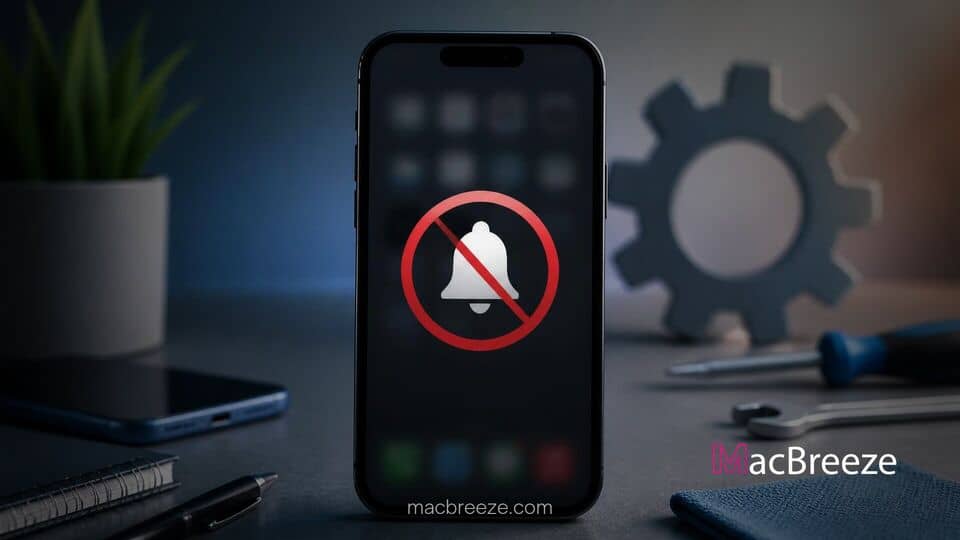
If you miss crucial calls, text messages, or app updates, learning how to fix iPhone notifications not working is essential for keeping your device reliable. Missing timely alerts can disrupt your entire day, whether it is an urgent work email or a reminder from family.
Notification glitches on iOS usually happen due to misconfigured Focus modes, disabled background permissions, network connectivity issues, or temporary software bugs. When system settings get misaligned after an update or app restore, push alerts may fail to sound, appear late, or disappear from the lock screen entirely.
Common Causes of Missing or Delayed iPhone Notifications
Before diving into complex settings, understanding what triggers push alert failures makes troubleshooting significantly easier. Several system features are designed to minimize distractions, but they can accidentally block critical alerts if enabled unexpectedly.
The most frequent culprits include active Do Not Disturb routines, scheduled notification summaries, low data mode restrictions, and corrupt network settings. Additionally, background app refresh restrictions can prevent apps from pulling new data in real time, causing messages to sit silently until you manually open the application.
Step-by-Step Fixes for iPhone Notification Issues
To help you resolve these problems quickly, follow this structured list of solutions designed to troubleshoot every layer of iOS notification management.
Before proceeding with advanced troubleshooting, complete these preliminary checks to ensure basic hardware and software states are correct:
- Ensure your iPhone is connected to a active Wi-Fi or cellular data network.
- Toggle the physical Ring/Silent switch or check Silent Mode in Control Center to ensure sound is enabled.
- Check that your iPhone is running the latest iOS update by navigating to Settings > General > Software Update.
- Verify that Low Power Mode is disabled in Settings > Battery, as reduced background processing can delay alerts.
Check System-Wide and App-Specific Alert Settings
System settings allow you to control notifications globally or on an app-by-app basis. If an app lost permission to post alerts, enabling notification permissions will restore banners and sound alerts immediately.
- Open the Settings app on your iPhone and tap Notifications.
- Ensure Show Previews is set to Always or When Unlocked so alerts appear on your lock screen.
- Scroll down the app list and select the specific app that is not showing alerts.
- Toggle on Allow Notifications at the top of the menu.
- Under the Alerts section, place checkmarks next to Lock Screen, Notification Center, and Banners.
- Toggle on Sounds and Badges to make sure auditory and visual indicators are active.
Disable Focus Modes and Scheduled Summaries
Apple Focus features and Scheduled Summaries consolidate alerts to cut down on screen time. However, if configured aggressively, they hide real-time push alerts until designated times during the day.
- Swipe down from the top-right corner of your screen to open the Control Center.
- Tap the Focus tile (such as Do Not Disturb, Work, or Sleep) to turn it off if active.
- Open Settings, tap Focus, and select any custom Focus profile to review silence rules under Allowed Notifications.
- Go back to the main Settings menu and tap Notifications.
- Select Scheduled Summary and toggle the switch off to ensure alerts arrive instantly rather than in batched deliveries.
Turn On Background App Refresh
Apps require background permissions to fetch new content and send real-time push notifications when you are not actively using them. If disabled, apps cannot trigger alerts until opened.
- Launch Settings and tap General.
- Select Background App Refresh.
- Tap Background App Refresh at the top and set it to Wi-Fi & Cellular Data.
- Return to the previous screen and ensure the toggle next to your troublesome app is turned on.
Reset Network and Notification Configurations
If software glitches persist, refreshing system cache configurations or clearing network profile conflicts can resolve underlying push service errors. If you experience additional system glitches like an iPhone stuck on the Apple logo boot loop, performing system resets can clear broken system tasks.
- Open Settings, select General, and scroll down to tap Transfer or Reset iPhone.
- Tap Reset at the bottom of the screen.
- Select Reset Network Settings and enter your passcode to clear corrupted network profiles that block Apple Push Notification services (APNs).
- If notifications remain missing after the restart, return to the Reset menu and choose Reset Location & Privacy to reset system permissions for all apps back to default.
Verifying That iPhone Push Alerts Are Working Properly
Once you have applied these configuration fixes, test your notification system to ensure messages and banners arrive properly. You can send a test text message from another device or ask a friend to message you on third-party platforms like WhatsApp or Slack. Verify that the banner appears at the top of your screen, the alert chime plays clearly, and the app icon displays the correct numerical badge counter.
Best Practices to Prevent Future Notification Failures
To avoid missing critical push alerts in the future, periodically review your iOS Focus schedules and app permission lists after installing system updates. Keep your installed applications updated through the App Store to prevent unexpected API crashes, and avoid turning on Low Data Mode unless absolutely necessary. Regular system maintenance ensures your Apple push notification services remain fully functional day after day.
By systematically checking your iOS settings, disabling conflicting Focus filters, and resetting system configurations, you can easily fix iPhone notifications not working or showing up. Keeping your system software updated and monitoring individual app permissions guarantees that your critical alerts, calls, and messages will always arrive on time.