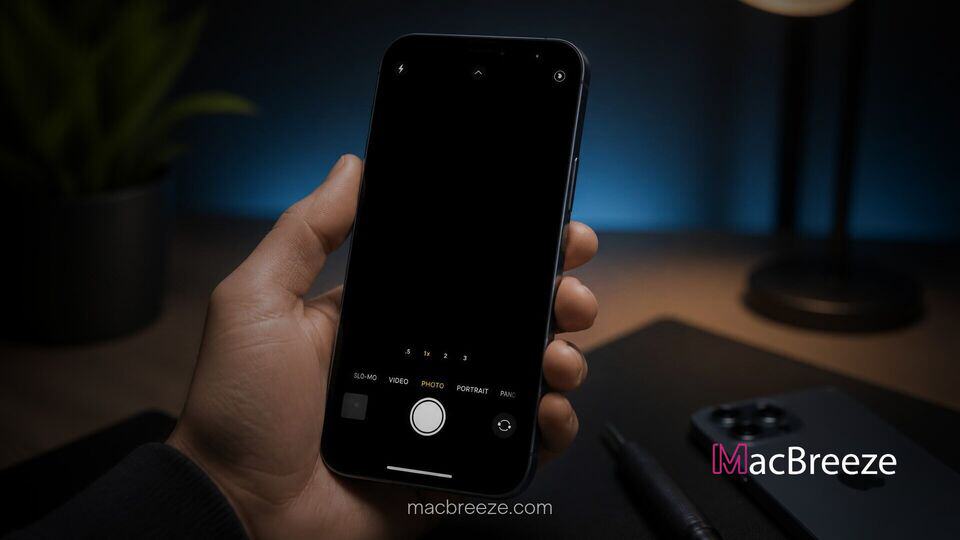
Opening your camera app to capture a quick photo only to be greeted by a completely black screen is an immensely frustrating experience. Learning how to fix iPhone camera black screen errors will help you bring your camera app back to life without losing your precious memories.
This widespread issue usually stems from temporary software glitches, frozen background processes, or app conflicts, though physical obstructions or hardware damage can occasionally be the root cause. Understanding whether the problem is caused by a minor system freeze or an iOS bug is key to choosing the right solution.
Common Causes of iPhone Camera Black Screen Issues
Before diving into complex troubleshooting, it helps to identify why your iPhone camera app displays a blank dark screen instead of a live preview:
- Temporary Application Freezes: The iOS Camera app background process can hang, preventing the lens sensor feed from loading properly on the screen.
- System Software Bugs: Pending iOS updates or temporary memory leaks can interfere with hardware communication between your iPhone logic board and the camera sensor.
- Conflicting Accessibility Settings: Features like VoiceOver or specific screen zoom controls can occasionally glitch and block the camera optical output.
- Physical Blockages or Case Interference: A protective case, magnetic accessory, or dirty lens cover might inadvertently obscure the camera module.
- Hardware Component Failure: Physical drops, liquid exposure, or loose internal ribbon cables can cause permanent sensor failures that require physical repair.
Step-by-Step Fixes for a Black iPhone Camera Viewfinder
Try these proven, sequential troubleshooting methods to restore full functionality to your iPhone camera lens and app interface.
Force Close and Relaunch the Camera App
If your camera app freezes upon launch, completely terminating its active memory process is the fastest way to clear transient code execution errors.
- Swipe up from the bottom of your home screen and pause in the middle (or double-click the Home button on older devices) to view open apps.
- Locate the Camera app card and swipe it firmly upward off the top of the screen to force close it.
- Return to your home screen, wait roughly five seconds, and tap the Camera app icon again to see if the viewfinder loads normal preview feeds.
Switch Between Front and Rear Cameras
Toggling the active lens mode forces iOS to re-initialize the camera driver software, which frequently clears black screens on a single sensor.
- Open the stock Camera application on your iPhone.
- Tap the flip camera icon (the circle with two arrows) located at the bottom right corner of the screen to switch to the selfie lens.
- If the front camera works, wait a second and tap the flip camera icon again to switch back to the main rear camera module.
Disable VoiceOver and Camera Accessibility Settings
Certain accessibility configurations, especially VoiceOver or screen zoom functions, are known to interfere with live visual rendering in camera apps.
- Launch the Settings app on your iPhone and navigate to Accessibility.
- Tap on VoiceOver and toggle the switch to the Off position if it was enabled.
- Return to the main Accessibility menu, select Zoom, and make sure that function is turned off as well before re-opening the Camera app.
Restart or Force Restart Your iPhone
A full reboot clears system RAM and halts rogue background tasks that might be locking your hardware camera module access permissions. If your screen is totally frozen, performing a force restart is often necessary, much like when resolving an iPhone stuck on the Apple logo boot loop.
- For modern iPhones without a Home button, press and quickly release the Volume Up button, then press and quickly release the Volume Down button.
- Press and hold the Side Power button continuously until you see the Apple logo appear on the display, then release it.
- Allow your device to boot back up into iOS, unlock your phone, and open the Camera app to test the viewfinder.
Update to the Latest iOS Version
Apple regularly releases system patches designed to resolve core software bugs, memory management errors, and camera driver stability issues.
- Connect your device to a reliable Wi-Fi network (if you experience wireless network drops, check out how to fix iPhone Wi-Fi connection issues).
- Open Settings, select General, and tap on Software Update.
- If an update is available, tap Download and Install, follow the on-screen instructions, and let your iPhone complete the upgrade process.
Reset All Settings to Clear Software Glitches
When custom system preferences or corrupted system files block hardware functionality, resetting system settings restores default factory rules without erasing personal user data.
- Open the Settings app, select General, and scroll down to tap Transfer or Reset iPhone.
- Tap Reset at the bottom of the screen, then choose Reset All Settings from the popup menu.
- Enter your device passcode and confirm the action; your iPhone will restart with factory system settings while retaining all your photos, apps, and messages.
When to Contact Apple Support for Hardware Repairs
If you have executed every software troubleshooting step and your screen remains pitch black across all photography applications (including third-party apps like Instagram or WhatsApp), you are likely facing a physical hardware malfunction. Mechanical shock from drops can loosen internal connector cables, while water exposure can damage sensitive image sensors.
In this scenario, schedule a service appointment at an authorized Apple Service Center or Apple Store. Technician repair policies have evolved significantly due to ongoing legal discussions around consumer repair access—such as how the court revived an anti-trust lawsuit over iPhone repair restrictions—making official diagnostic tools your safest path forward for genuine sensor replacement.
How to Prevent This Issue in the Future
To keep your iPhone camera operating smoothly and minimize future blank viewfinder errors, adopt a few healthy maintenance habits. Keep your device updated to the latest iOS release, avoid storing your phone in extremely hot environments, and periodically force-close unused background camera applications. Additionally, choose protective cases that do not block the camera module or rely on heavy internal magnets that could disrupt sensor balance or optical image stabilization.
Following this simple guide will help you fix iPhone camera black screen glitches quickly whenever they occur. By taking preventative measures and running through basic software resets, you can ensure your iPhone camera remains reliable for capturing every important moment.