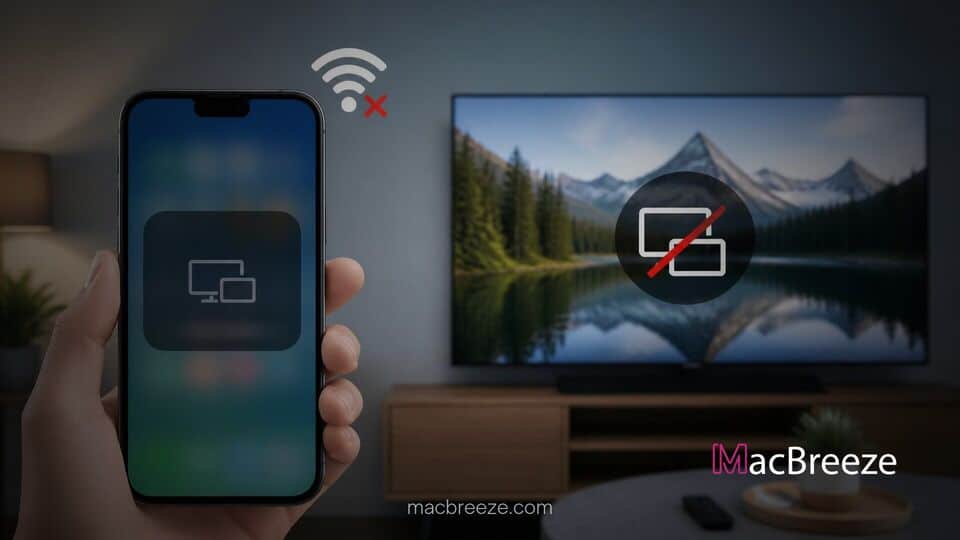
When you want to beam photos, stream video, or mirror your mobile screen, encountering issues can be extremely frustrating. Fortunately, you can quickly fix iPhone AirPlay not working or screen mirroring failures with a few quick troubleshooting adjustments.
AirPlay relies on a combination of Wi-Fi communication, local network device permissions, and background system services to establish a smooth media link. When those parameters fall out of sync due to network glitches, minor software bugs, or misconfigured security settings, your target smart TV, Apple TV, or Mac will fail to display your streamed content.
Common AirPlay and Screen Mirroring Symptoms on iPhone
AirPlay connectivity issues rarely present in a single, obvious way. Depending on whether you are trying to mirror your entire screen or stream media from within a specific application, you might encounter distinct symptoms across your devices.
AirPlay Icon Missing or Grayed Out
One of the most frequent indicators of a failure is when the AirPlay or Screen Mirroring icon disappears from the Control Center or inside video player controls. When the icon is missing or unresponsive, your iPhone is failing to recognize any compatible receivers on your current local network. This commonly occurs right after an iOS update or when your phone switches to a different wireless frequency band.
Video Buffering or Disconnecting Unexpectedly
Another common scenario occurs when AirPlay establishes an initial connection, only to fail shortly after playback begins. You might notice endless loading spinners, frozen video frames while audio continues playing, or sudden dropouts that kick you back to your iPhone home screen. These intermittent dropouts usually point to bandwidth bottlenecks or conflicts within your local router configuration.
Primary Causes of AirPlay Connection Failures
Understanding why AirPlay drops or fails to connect makes it much easier to prevent recurring streaming glitches across your Apple hardware ecosystem. The primary technical culprits behind these interruptions include:
- Mismatched Wi-Fi Networks: Your iPhone and receiving device are connected to different SSID network names, guest networks, or isolated 2.4 GHz and 5 GHz bands.
- Disabled Bluetooth or Location Services: Modern AirPlay protocols use Bluetooth Low Energy (BLE) to discover nearby devices before switching over to Wi-Fi for data transfer.
- Temporary OS Glitches: Background services like airplayd on iOS or tvOS can crash or freeze during long standby sessions.
- Strict Network Firewalls: Router security features such as AP Isolation or strict local firewall rules block device-to-device communication.
- Outdated Firmware: Running mismatched software versions on your iPhone, smart TV, or Apple TV can result in protocol handshake failures.
Step-by-Step Fixes for iPhone AirPlay Issues
Before jumping into advanced system restores, run through these quick pre-check steps to eliminate basic physical and environmental barriers:
- Ensure your smart TV, Apple TV, or Mac is powered on, awake, and within close range of your iPhone.
- Verify that both devices are awake and not currently in Low Power Mode or sleep mode.
- Turn off Hotspot mode on your iPhone, as personal hotspots prevent standard local network bridging.
- Make sure any active VPN configurations on your iPhone are temporarily disabled to prevent traffic rerouting.
Verify Wi-Fi Network Alignment and Bluetooth Status
For AirPlay to initiate discovery and transmit low-latency video, both devices must sit on the exact same network segment, and Bluetooth must remain active to negotiate the initial handshake.
- Open Settings on your iPhone and tap Wi-Fi.
- Check the network name (SSID) you are connected to, then check the network settings on your TV or Mac to confirm they match identically.
- If your router splits 2.4 GHz and 5 GHz frequency bands into separate names, connect both devices to the same frequency (preferably 5 GHz for better streaming bandwidth).
- Return to Settings, select Bluetooth, and ensure the toggle switch is enabled.
Check AirPlay Permissions and Screen Mirroring Settings
If your receiving device is set to restrict connection attempts or requires passcodes that have expired, your iPhone will refuse to mirror its display.
- On your receiving device (such as an Apple TV or smart TV), open the system Settings menu.
- Navigate to the AirPlay and HomeKit section.
- Ensure AirPlay is turned On.
- Select Allow Access and set it to Everyone or Anyone on the Same Network for hassle-free pairing.
- If you regularly face wireless bandwidth drops while streaming video, reviewing basic steps to fix iPhone Wi-Fi connection issues can resolve underlying infrastructure problems.
Restart iPhone and AirPlay Receiving Devices
Rebooting both your broadcasting and receiving hardware clears temporary cache files and restarts background wireless daemons that handle media handshakes.
- Press and hold the Side Button along with either Volume Button on your iPhone until the power-off slider appears.
- Drag the slider to turn off your iPhone completely, wait 30 seconds, and hold the side button to power it back on.
- Restart your receiving device by unplugging its power cord from the wall outlet for 10 seconds before plugging it back in.
- If you are casting to a computer host, ensuring software stability is crucial; for instance, resolving critical vulnerabilities on your desktop, such as fixing a macOS Screen Sharing vulnerability, ensures your local streaming daemons remain healthy.
Reset iPhone Network Settings
Corrupted network profiles, stale DNS caches, or conflicting Wi-Fi configurations on your mobile device can prevent local peer-to-peer streaming protocols from working properly.
- Open the Settings app on your iPhone.
- Tap General, then scroll down and select Transfer or Reset iPhone.
- Tap Reset at the bottom of the screen.
- Choose Reset Network Settings and enter your device passcode to confirm.
- Once your iPhone reboots, reconnect to your home Wi-Fi network and attempt to launch AirPlay again.
Update iOS and AirPlay Receiver Firmware
Outdated system software frequently causes protocol mismatches between newer iOS media engines and older TV firmware platforms.
- On your iPhone, navigate to Settings > General > Software Update.
- If an update is available, tap Download and Install.
- Check your smart TV or Apple TV settings menu for system updates and install any pending firmware releases.
- Keep in mind that keeping your mobile OS updated prevents broader operating glitches; for example, major updates like iOS 27 beta changes often overhaul underlying background framework interactions.
How to Test AirPlay and Prevent Future Connection Drops
To confirm that your changes worked, swipe down from the top-right corner of your iPhone screen to access the Control Center, tap Screen Mirroring, and select your TV from the list. If audio or video stutters, check your router settings to ensure AP Isolation (Client Isolation) is turned off, as this setting prevents devices on the same Wi-Fi network from communicating directly with each other. Furthermore, keep your Wi-Fi router firmware updated and avoid using strict third-party security software that might interfere with local network traffic.
By following these steps, you can easily fix iphone airplay not working issues and enjoy seamless screen mirroring across all your household screens without unexpected playback drops or lag.