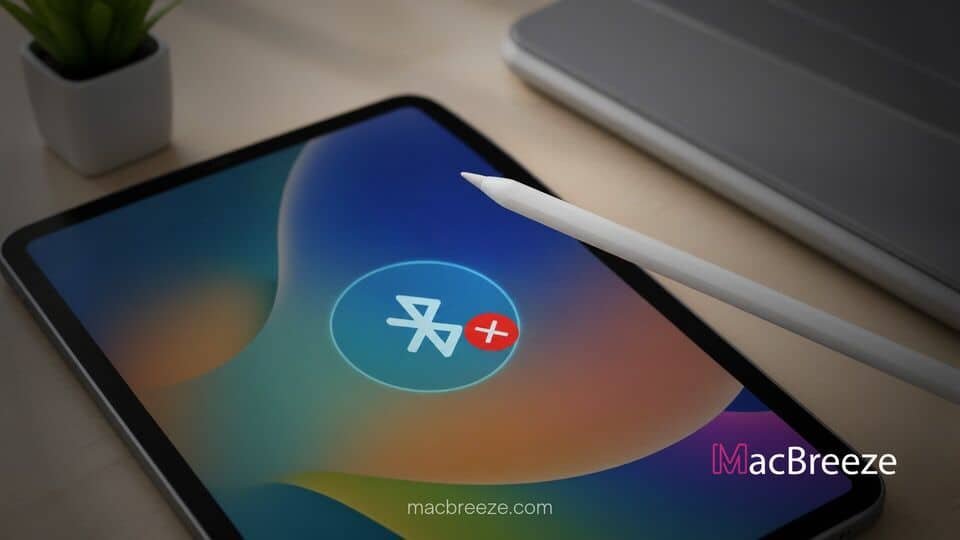
When you are in the middle of taking notes, sketching, or navigating iPadOS, a stylus that randomly stops responding can derail your entire workflow. Fortunately, learning how to fix Apple Pencil disconnecting iPad problems is straightforward once you know which hardware and software factors to check.
Connection instability usually stems from minor physical issues like a loose tip or low battery, temporary Bluetooth stack glitches, or outdated system software. In rarer instances, aggressive battery saver modes or corrupted network and connection settings prevent the stylus from maintaining a stable wireless link with your tablet.
Common Reasons Apple Pencil Disconnects from iPad
Before jumping into multi-step troubleshooting, understanding why your stylus drops its wireless connection helps you pinpoint the remedy faster. The physical contact between your Apple Pencil tip and internal transducer can loosen over time through normal usage, disrupting signals sent to the iPad screen. Similarly, Bluetooth radio interference from metal cases, thick screen protectors, or dense external accessories can cause signal dropouts.
Software-level conflicts also account for a significant portion of connection failures. Temporary system bugs in iPadOS can freeze the Bluetooth daemon, leading to persistent pairing failures even when your hardware is completely healthy. Keeping your tablet updated is vital, just as installing system updates resolved underlying display issues in our guide on how to fix an unresponsive iPad touchscreen.
Solutions to Fix Apple Pencil Disconnecting iPad Issues
If your stylus keeps unpairing, refusing to write, or failing to pair during setup, work through the targeted troubleshooting steps below to establish a rock-solid wireless connection.
Before proceeding with advanced solutions, complete these quick pre-checks:
- Ensure your iPad model is officially compatible with your specific Apple Pencil generation (Lightning vs. Magnetic USB-C / Wireless charging).
- Remove any bulky protective cases or third-party magnetic sleeves that might block proper contact along the iPad edge or charging port.
- Clean the magnetic connector strip on the side of your iPad or the Lightning / USB-C port with a soft, lint-free cloth.
- Verify that your iPad has sufficient charge, as low-power states can cause system radios to behave unpredictably—similar to issues explored in our article on how to fix an iPad that will not charge or turn on.
Checking Battery Level and Bluetooth Status
An Apple Pencil with a depleted or critically low battery will frequently drop its Bluetooth pairing or refuse to stay connected. Checking both power levels and radio status ensures basic communication remains intact.
- Attach your Apple Pencil (2nd Gen or Pro) to the magnetic connector on your iPad, or plug your Apple Pencil (1st Gen / USB-C) into the connector port.
- Swipe right on your Home Screen to view the Batteries Widget and verify the charge percentage of the Pencil.
- Open Settings on your iPad and tap Bluetooth.
- Toggle the main Bluetooth switch to the Off position, wait 10 seconds, and turn it back On.
Inspecting and Tightening the Apple Pencil Tip
The nib of the Apple Pencil screws directly onto the internal sensor mechanism. If it unscrews even slightly, the iPad may stop registering pen input or drop pairing entirely.
- Gently grip the plastic nib of your Apple Pencil.
- Rotate the tip clockwise until you feel firm resistance. Do not overtighten or force it.
- If the tip is visibly worn, cracked, or damaged, unscrew it completely counter-clockwise and replace it with a genuine Apple replacement tip.
Step-by-Step Fixes for Apple Pencil Connection Drops
If simple hardware checks do not resolve the issue, moving on to system-level reset procedures will clear out stuck pairing caches and refresh device communication protocols.
Unpairing and Re-Pairing Apple Pencil in iPadOS
Re-establishing the Bluetooth bond between your devices wipes out corrupted pairing profiles that cause random disconnections.
- Open the Settings app on your iPad and select Bluetooth.
- Locate your Apple Pencil under the My Devices list and tap the Info (i) icon next to it.
- Tap Forget This Device and confirm your choice when prompted.
- Restart your iPad by navigating to Settings > General > Shut Down, then slide to power off. Wait 30 seconds and turn the iPad back on.
- Reattach your Apple Pencil magnetically or connect it via cable/adapter, then tap Pair when the on-screen prompt appears.
Advanced Troubleshooting for Persistent Pairing Errors
When basic re-pairing fails, deeper iPadOS system resets can resolve underlying wireless protocol glitches without erasing your personal data.
Resetting iPad Network Settings and Verification
Resetting network and wireless configurations restores the original factory state for Bluetooth, Wi-Fi, and cellular chips without wiping your personal files or photos.
- Launch Settings on your iPad and tap General.
- Scroll down to the bottom and select Transfer or Reset iPad.
- Tap Reset at the bottom of the screen.
- Select Reset Network Settings and enter your device passcode to confirm.
- After your iPad restarts, turn Bluetooth on and attempt to pair your Apple Pencil again.
Force Restarting Your iPad
A force restart clears temporary cached memory across all system subsystems, forcing iPadOS to reconfigure attached hardware devices.
- For iPads without a Home Button: Press and quickly release the volume button closest to the top button, press and quickly release the volume button farthest from the top button, then press and hold the top power button until the Apple logo appears.
- For iPads with a Home Button: Press and hold both the top power button and the Home button simultaneously until the screen turns off and the Apple logo displays.
- Allow the iPad to complete its boot sequence, unlock the tablet, and dock your Apple Pencil to test the connection.
Updating iPadOS to the Latest Release
Outdated system software can contain bugs affecting Bluetooth stability. Apple frequently issues patches to address peripheral connectivity in system updates.
- Open Settings on your iPad and tap General.
- Select Software Update and allow the system to check for available releases.
- If an update is available, tap Download and Install. Ensure your iPad is connected to Wi-Fi and plugged into power during the installation.
How to Prevent This Issue in the Future
Preventing future connection drops requires minimal upkeep. Keep your Apple Pencil tip snug by checking it periodically, avoid storing your stylus attached to the iPad inside tight bags where physical strain could bend the magnetic connector, and never let the Pencil battery rest at 0% charge for extended periods to preserve lithium-ion battery health.
Following these simple steps ensures you can easily fix Apple Pencil disconnecting iPad problems whenever they arise. By maintaining clean connectors, updating iPadOS, and keeping the nib secured, your stylus will deliver smooth, uninterrupted performance for every project.