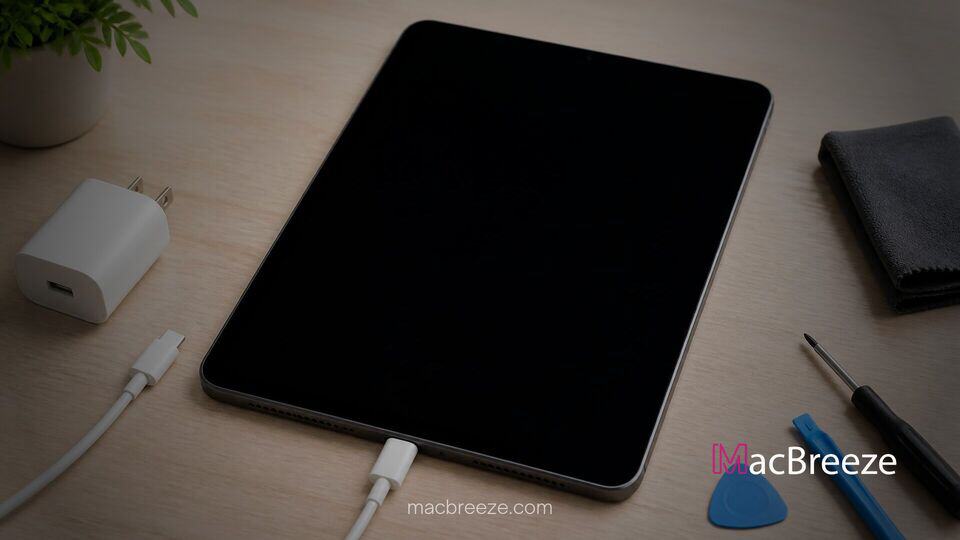
Is your beloved Apple tablet completely unresponsive and displaying nothing but a pitch-black screen? Do not panic just yet, because learning how to fix iPad not charging or turning on is often much easier than you might think.
It can be incredibly frustrating when your device refuses to respond to a charger or a long press of the power button. This annoying problem is usually triggered by a deeply drained battery, a corrupted software crash, a damaged cable, or debris trapped inside your charging port. Fortunately, you can resolve most of these common issues right at home without spending money on expensive repair services!
Common Causes of iPad Charging and Power Issues
When an iPad stops responding completely, the underlying reason generally falls into one of two main categories: physical hardware interruptions or temporary software glitches. A dead battery that has drained past its normal threshold can cause the screen to stay black for up to twenty minutes even after being plugged into a working outlet.
In other scenarios, your iPad might actually be powered on, but a sudden system crash has frozen the display and touchscreen controller. Furthermore, worn-out Lightning or USB-C charging cables, dirty power ports, and low-wattage wall adapters frequently prevent the battery from receiving sufficient electrical current to boot up the operating system.
Basic Troubleshooting Steps for Unresponsive iPads
Before moving on to comprehensive repair solutions, take a moment to perform these preliminary checks. Ensuring that your basic accessories and environment are working properly can save you hours of unnecessary troubleshooting.
- Verify that your power outlet or power strip is receiving electricity by testing it with another electronic device, such as a lamp or smartphone charger.
- Inspect your charging cable along its entire length for any visible signs of fraying, severe bends, exposed wiring, or melted plastic insulation.
- Ensure that you are using an official Apple power adapter or a certified third-party charger capable of delivering at least 12 watts of power output.
- Confirm that your room temperature is moderate, as extreme cold or excessive heat can temporarily prevent lithium-ion batteries from accepting a charge.
- Remove any bulky protective cases that might be blocking the charging cable from fully seating into your iPad's power port.
Solutions to Fix iPad Not Charging or Turning On
If your device remains completely silent and dark after your initial checks, follow these proven solutions below to resolve the issue quickly and safely.
Check Cable, Adapter, and Power Outlet
A faulty charging accessory is the single most common culprit when an iPad appears completely dead and unresponsive. Swapping out your gear helps isolate whether the problem lives in your tablet or your charging equipment.
- Disconnect your current charging cable and power brick from both the wall and your iPad.
- Plug a different high-wattage wall adapter directly into a confirmed working wall socket rather than a USB hub or computer port.
- Connect an original or MFi-certified charging cable to the power adapter and insert it firmly into your iPad.
- Leave the iPad connected uninterrupted for at least thirty to forty-five minutes before touching any buttons.
Inspect and Clean the iPad Charging Port
Over months of daily use, lint, pocket dirt, and dust can accumulate inside the charging port. This buildup prevents the metal pins on your cable from establishing a solid electrical connection.
- Grab a bright flashlight and shine it directly into the Lightning or USB-C port at the bottom of your iPad.
- Carefully check for visible packed lint, fuzz, or small debris lodged at the back of the port.
- Turn off the device completely if possible, then take a wooden or plastic toothpick and gently scrape out the debris using delicate upward strokes.
- Avoid using metal needles, paperclips, or safety pins, as sharp metal can permanently bend or break the delicate gold contact pins inside.
- Blow a brief burst of compressed air into the port to clear out remaining loose dust, then plug in your charger to see if the charging icon appears.
Force Restarting Your Unresponsive iPad
When iPadOS suffers a severe freeze or software system crash, the screen may remain completely black even if the battery is fully charged. Performing a forced restart cuts power to the processor briefly, clearing out corrupted temporary cache data without deleting your personal files.
Force Restart iPads with a Home Button
If your tablet features a physical, clickable Home button located directly below the screen display, follow these simple steps to perform a hard reset.
- Press and hold down the top Power button and the circular Home button simultaneously.
- Keep holding both buttons down together for roughly ten to fifteen seconds.
- Ignore any on-screen prompts if they briefly appear.
- Release both buttons immediately once the metallic white Apple logo lights up in the middle of your screen.
- Allow your iPad a minute or two to finish booting up to your lock screen naturally.
Force Restart iPads Without a Home Button
Modern iPad models featuring full-screen displays, Face ID, or Touch ID built directly into the top power button use a distinct button combination to trigger a force restart.
- Press and quickly release the Volume Up button located on the side of your iPad.
- Immediately press and quickly release the Volume Down button.
- Press and hold down the top Power button continuously without letting go.
- Continue holding the Power button down for about ten to twenty seconds while the screen stays dark.
- Release the Power button as soon as you see the bright Apple logo pop up on the display.
Advanced Solutions Using Recovery Mode
If a force restart fails to revive your device, the operating system firmware might be corrupted. Putting your iPad into Recovery Mode allows you to reinstall iPadOS using a Mac or Windows computer.
- Open Finder on a Mac running modern macOS, or open iTunes on a Windows PC or older Mac computer.
- Connect your iPad to the computer using your verified working charging cable.
- For iPads with a Home button: press and hold both the Home button and Top button together until you see the Recovery Mode screen showing a computer cable icon.
- For iPads without a Home button: press and quickly release Volume Up, press and quickly release Volume Down, then hold the Top button until the Recovery Mode screen appears.
- Look at your computer screen, where a pop-up box will ask if you want to Update or Restore your device.
- Click on Update first; this commands your computer to reinstall iPadOS without wiping your photos, apps, or personal data.
When to Contact Apple Support for Hardware Repairs
If your screen remains black after attempting software recovery, your device likely has an internal hardware failure. Severe physical drops, liquid exposure, or an aged lithium-ion battery that has reached its end of lifecycle require professional technician assistance.
- Visit the official Apple Support website or open the Apple Support app on another iOS device.
- Select iPad from the hardware list and navigate to Battery & Charging.
- Choose whether to schedule an in-person appointment at your nearest Apple Store Genius Bar or send your device via mail to an authorized service center.
- Request a full hardware diagnostic check to determine whether you need a replacement battery, display panel, or logic board repair.
How to Prevent This Issue in the Future
To stop your tablet from freezing or refusing a charge in the future, practice smart battery maintenance. Try to avoid letting your iPad's battery drain all the way to zero percent on a regular basis, as deep discharges place heavy strain on lithium cells. Keep your iPad OS updated to the latest software release, clean your charging port periodically with compressed air, and always stick to original Apple or certified MFi accessories for consistent voltage delivery.
Taking a few moments to troubleshoot your tablet can quickly get your device back up and running smoothly. By following these clear steps, you can easily fix iPad not charging or turning on without losing your precious data or spending money unnecessarily. Enjoy your fully refreshed iPad!