If your iCloud icon is missing from settings on macOS 26, you’re not alone. This irritating glitch can prevent you from managing your iCloud account or accessing its settings seamlessly.
The root of this problem often lies in software bugs, incomplete macOS updates, account syncing issues, or disabled system preferences. Thankfully, several effective fixes can help restore your essential iCloud icon quickly.
Solutions to Restore iCloud Icon Missing from Settings
Before diving in, double-check the basics to eliminate any simple oversight and ensure your system is ready for troubleshooting.
- Ensure you’re logged into your Mac with an administrator account.
- Verify your macOS 26 is up to date.
- Check your internet connection is stable and active.
- Restart your Mac at least once if you haven’t already.
1. Use anything other than multicolor theme
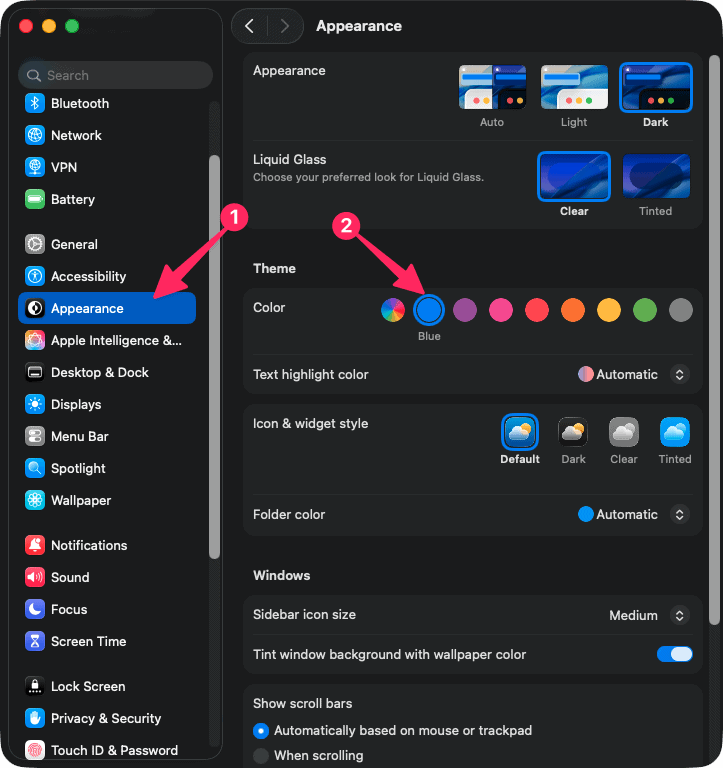
If on your latest Mac OS, you are using the multicolor them, it can be a reason. A lot of users nowadays reported having iCloud icon missing problem while using the multicolor appearance. To solve it, follow these steps:
- Click on the Apple icon on the top menubar and go to System Settings.
- Go to Appearances and choose anyhing except multicolor, as shown in the screenshot.
- Restart your Mac.
Now, verify if it has fixed the iCloud icon missing problem or not.
2. Rebuild/reset system preference cache
This is another excellent workaround to fix iCloud icon not showing up on settings. Here are the steps to follow:
- Open Finder.
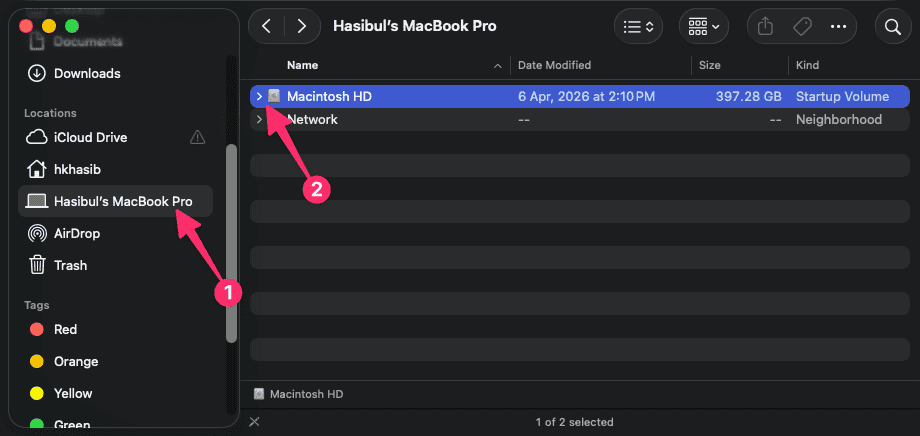
- Go to your Macbook's disk from the sidebar and then go to Machintosh HD.
- Navigate to the Users and then go to your current user's folder.
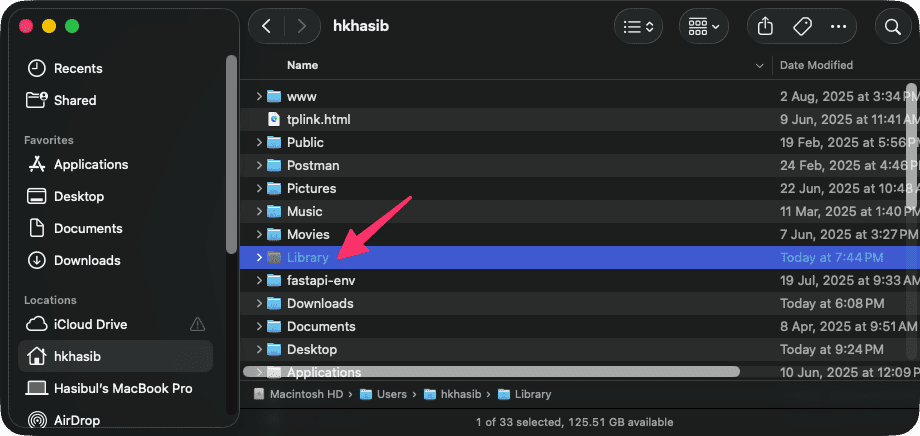
- Now, on your keyboard, press Command + Shift + . to show the hidden folders.
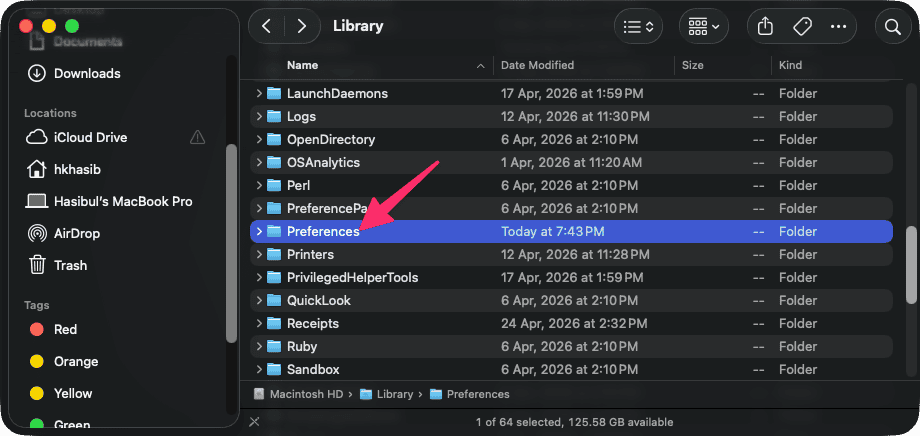
- After that, go to the Library.
- Then, go to Preferences.
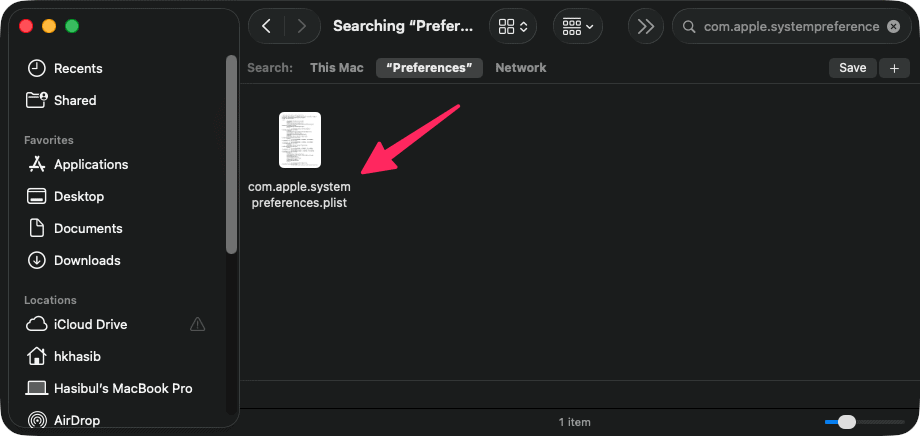
- Now, find com.apple.systempreferences.plist and move it to somewhere else, for example Desktop.
- Restart your Mac.
This is so far the most successful method to troubleshoot iCloud icon missing problem. So, hopefully, it will work for you as well. If not, follow the next methods.
2. Update macOS to the Latest Version
Outdated macOS versions sometimes disrupt system settings, including the iCloud icon display.
- Go to Apple Menu > System Settings > General > Software Update.
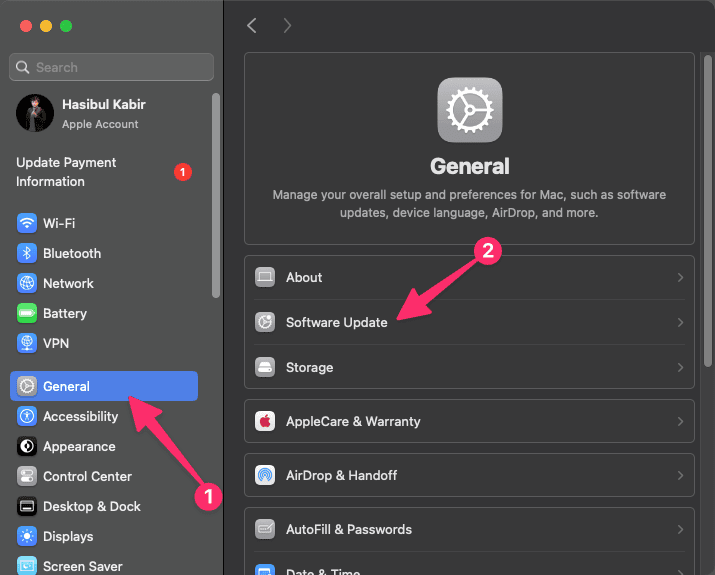
- Check for available updates and install them if needed.
- After updating, restart your Mac and check if the iCloud icon has returned.
3. Check iCloud Feature Availability
Sometimes, system tweaks or managed profiles disable specific settings, hiding the iCloud icon.
- Open System Settings and look under your Apple ID at the top left.
- If you don’t see Apple ID options, open Profiles (in older versions called Profiles & Device Management).
- Check if any profile is limiting account settings or iCloud. Remove or adjust restrictions if needed.
4. Re-enable iCloud in System Preferences
iCloud services might be toggled off due to an error or accidental changes.
- Open System Settings > Apple ID.
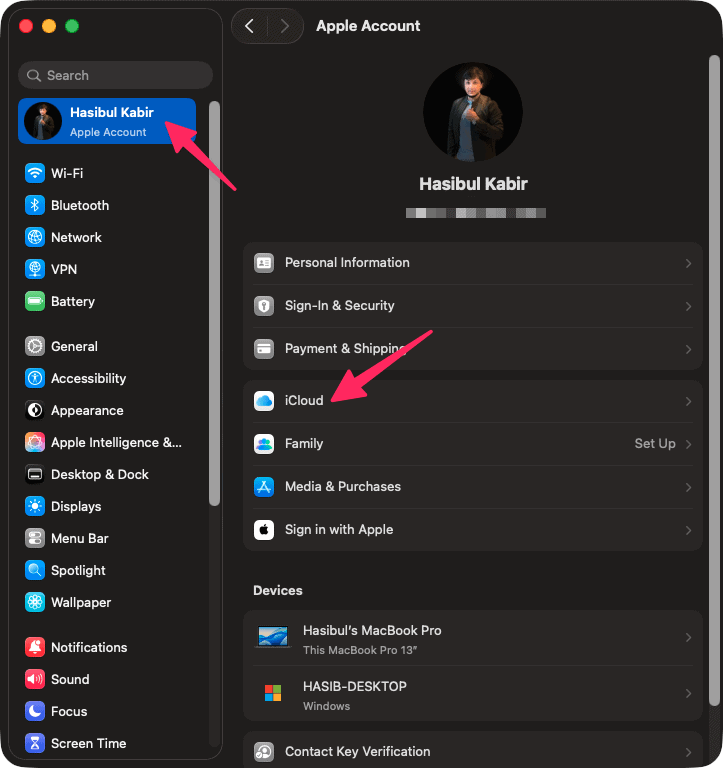
- If you’re not signed in, enter your credentials and log in.
- Ensure iCloud is enabled; toggle it off and then back on to trigger a refresh.
5. Reset NVRAM/PRAM
Certain settings anomalies, like missing icons, can be resolved by resetting your Mac's NVRAM/PRAM.
- Shut down your Mac.
- Turn it on and immediately hold Option + Command + P + R for about 20 seconds.
- Release the keys when your Mac restarts.
- Log in and check if the iCloud icon reappears in settings.
6. Create a New User Account
Sometimes, user profile corruption is the culprit. A new account can reveal if your main user profile is affected.
- Go to System Settings > Users & Groups.
- Click the + (plus) button to create a new user account.
- Log out of your current account and into the new one. Check if the iCloud icon is visible in settings.
7. Safe Mode Boot
Booting in Safe Mode can clear out caches and reveal if third-party software is causing conflicts.
- Shut down your Mac.
- Turn it on and immediately press and hold Shift.
- Release Shift when you see the login window.
- Log in and check for the iCloud icon in settings. Restart normally when done.
How to Prevent This Issue in the Future
To help avoid the hassle of the iCloud icon missing from settings again, regularly update your macOS and back up important system settings. Avoid installing unauthorized profiles and always ensure your Mac is restarted after significant changes or updates.
In summary, resolving the iCloud icon is missing from settings error on macOS 26 is achievable with the above troubleshooting steps. Regular updates and monitoring your system profiles will help keep your iCloud icon accessible and your Mac running smoothly.