Experiencing screen flickering Mac issues can be frustrating, whether you're working or relaxing. This guide will walk you through the best methods to fix screen flickering problems on your Mac reliably.
Screen flickering or stuttering on any Mac OS based devices can happen for various reasons. It includes software bugs and outdated graphics drivers, as well as hardware problems or conflicting settings.
Identifying the culprit and applying the right fix is crucial for restoring your display’s stability and preventing further disruptions.
Solutions to Fix Screen Flickering on Mac
Before diving into specific fixes, run through these quick checks to ensure the root problem isn't something simple:
- Disconnect all external displays and cables
- Restart your Mac after saving your work
- Check for available macOS software updates
- Test the issue in Safe Mode
1. Update macOS to the Latest Version
Outdated operating systems can cause compatibility issues leading to screen flickering. Keeping your Mac updated often resolves such problems.
- Click the Apple menu () and select System Settings or System Preferences.
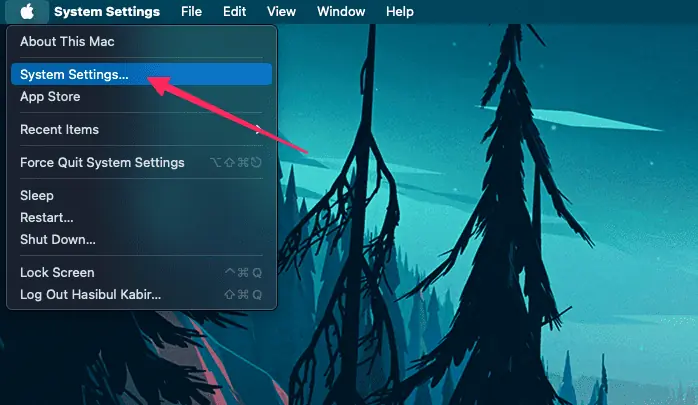
- Choose General > Software Update.
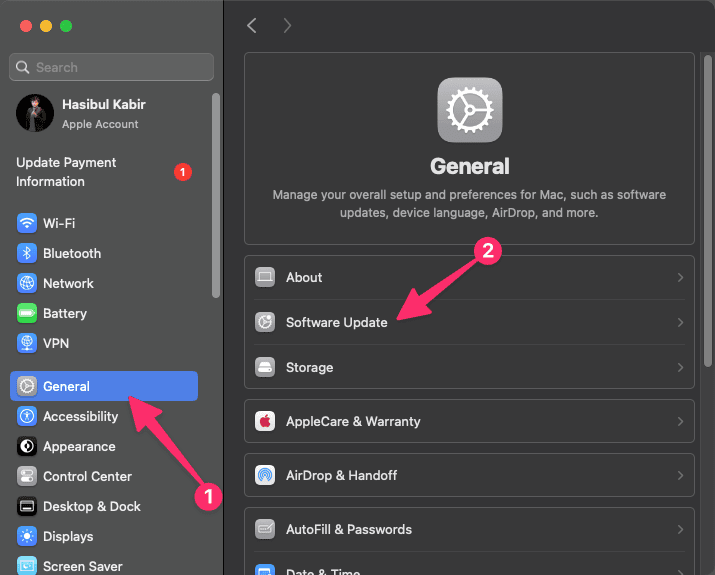
- If an update is available, click Update Now and follow the prompts.
- Restart your Mac to apply changes.
2. Disable True Tone
Disabling True Tone on Mac sometimes fixes the glitch that causes the screen flickering problem on the built-in display. To do it, follow these steps:
- Go to System Settings like before.
- Then navigate to the Display Settings.
- Now, toggle the switch off next to the True Tone option.
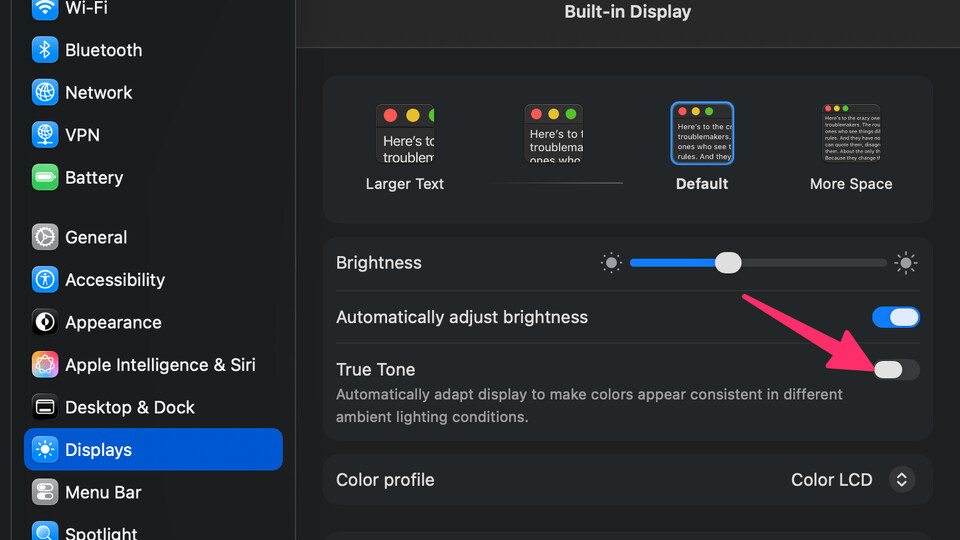
After that, restart your Macbook and see if the flickering issue is gone or not.
3. Reset NVRAM/PRAM
NVRAM/PRAM stores display-related settings that can occasionally become corrupted, leading to screen flickering Mac problems.
- Shut down your Mac completely.
- Turn it on and immediately press and hold Option + Command + P + R.
- Keep holding the keys for about 20 seconds, then release.
- Let your Mac boot normally and check if the flickering persists.
4. Boot into Safe Mode
Safe Mode disables third-party software and basic graphics acceleration, helping to identify if downloads or extensions are to blame.
- Shut down your Mac.
- Press the power button, then immediately hold the Shift key.
- Release Shift when the login screen appears.
- See if the display flickers in Safe Mode. If not, third-party software may be involved.
5. Reset SMC (System Management Controller)
The SMC controls low-level functions on your Mac, including display behavior. A reset can clear out many hardware-related glitches.
- Shut down your Mac.
- If it has a T2 Security Chip (2018 or later Macs):
a. Hold Control + Option + Shift (right side) for 7 seconds, then add the power button for another 7 seconds.
b. Release all keys, wait a few seconds, and power on.
If it’s an older Intel-based Mac: a. Unplug power adapter, wait 15 seconds, plug it back in, and wait 5 seconds, then turn it on.
6. Disable Automatic Graphics Switching
If you own a MacBook Pro with dual graphics, automatic switching can sometimes cause flickering.
- Go to System Settings (or System Preferences) > Battery (or Energy Saver).
- Uncheck Automatic graphics switching.
- Restart your Mac and check if the screen stabilizes.
6. Check for App or Display Conflicts
Conflicting or recently installed apps and connected external displays can trigger flickering Mac problems.
- Disconnect all external monitors and peripherals.
- Close unnecessary apps, especially those that control or modify display settings.
- If the flickering stops, reintroduce devices and apps one by one to identify the culprit.
How to Prevent This Issue in the Future
To prevent screen flickering Mac issues from recurring, always keep your macOS and all apps up to date. Regularly check for firmware updates, avoid installing untrusted third-party software, and handle your Mac with care to prevent hardware damage.
Additionally, periodically reset your NVRAM/PRAM and SMC as part of routine maintenance, especially after major software updates or hardware changes.
In conclusion, fixing screen flickering Mac issues typically involves a mix of software updates, settings adjustments, and hardware checks. By following the steps above, you can restore your Mac’s display to optimal performance and reduce the chances of flicker returning in the future.