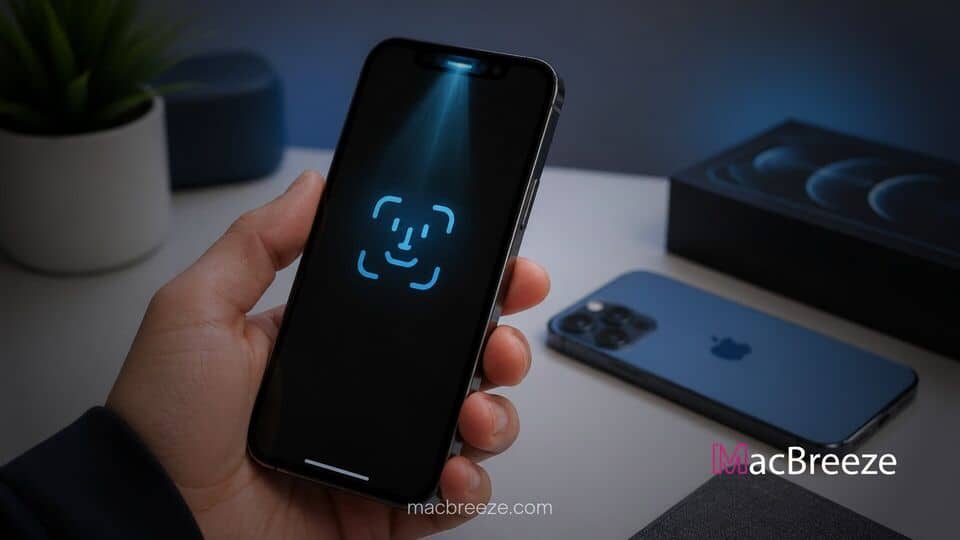
If facial recognition fails, following a guide to fix iphone face id not working issues can get your device recognizing your face again quickly. Face ID is central to unlocking your phone, approving Apple Pay purchases, and logging into secure applications.
When Face ID fails or displays errors like "Unable to Activate Face ID on this iPhone," software glitches, obstructions, or hardware component issues are usually responsible. Dirty camera sensors, misconfigured settings, bad iOS updates, or physical damage to the TrueDepth camera module can easily interrupt authentication.
Why Face ID Fails or Shows Unable to Activate Error
Face ID relies on Apple's TrueDepth camera system, which projects and analyzes thousands of invisible dots to create a precise depth map of your face. When sensor pathways are obstructed by dirt, thick glass screen protectors, or heavy phone cases, the depth map cannot form correctly.
Software bugs during iOS updates, incorrect permission toggles, or cached configuration files can also crash the facial recognition subsystem. In severe cases, drops or liquid exposure damage the sensitive dot projector or infrared camera, triggering system-level diagnostic errors such as "Face ID Has Been Disabled" or "Unable to Activate Face ID."
Initial Checks Before Troubleshooting Face ID
Before proceeding to advanced solutions, complete these quick pre-checks to ensure basic conditions are met:
- Examine the TrueDepth camera notch or Dynamic Island: Confirm that no dust, smudges, finger oils, or cracked glass cover the top sensor cluster.
- Verify face visibility: Ensure your eyes, nose, and mouth are clearly visible to the camera without heavy facial coverings or light-blocking sunglasses.
- Check device orientation: Hold your iPhone in portrait orientation (unless using an iPhone 13 or newer running iOS 16 or later, which supports landscape Face ID).
- Keep correct distance: Position your iPhone approximately 10 to 20 inches (25 to 50 cm) away from your face.
- Inspect for physical or water damage: Check if recent drops or liquid exposure coincided with the Face ID failure.
Solutions to Fix This Error
Follow these step-by-step troubleshooting solutions to restore proper facial recognition functionality on your iPhone.
Clean the TrueDepth Camera and Remove Screen Protectors
Even small smudges or improperly installed screen protectors can scatter the infrared dot projection, preventing Face ID from scanning your features accurately.
- Grab a clean, dry, lint-free microfiber cloth.
- Gently wipe the top front camera area (the notch or Dynamic Island) to remove smudges and debris.
- If you recently applied a screen protector or thick case, carefully peel it off to test if it was blocking the sensor array.
Verify Face ID Settings and Feature Access
If Face ID works for phone unlocking but fails inside banking apps or iTunes purchases, the setting for that specific feature might simply be toggled off.
- Open the Settings app on your iPhone.
- Scroll down and tap Face ID & Passcode, then enter your passcode.
- Under the Use Face ID For section, ensure toggles for iPhone Unlock, iTunes & App Store, Wallet & Apple Pay, and Password AutoFill are turned on.
- Tap Other Apps to verify that third-party applications have permission to use Face ID authentication.
Reset Face ID and Set Up an Alternate Appearance
Corrupted facial scan data can cause continuous recognition failures. Deleting your existing biometric data and setting up Face ID from scratch usually resolves software alignment issues.
- Open Settings and tap Face ID & Passcode.
- Enter your lock screen passcode.
- Tap Reset Face ID to delete all saved facial data.
- Tap Set Up Face ID, position your face within the frame, and move your head slowly to complete the circle.
- Optionally, select Set Up an Alternate Appearance if you frequently wear hats, thick glasses, or distinct headwear.
Restart or Force Restart Your iPhone
Temporary system glitches in iOS can freeze background hardware daemons tied to the TrueDepth camera. A quick forced reboot clears temporary system memory and restarts services.
- Press and quickly release the Volume Up button.
- Press and quickly release the Volume Down button.
- Press and hold the Side button continuously until the Apple logo appears on screen, then release it.
Update iOS and Reset All Settings
Software updates contain essential stability patches for hardware components. If updating does not work, resetting system configurations fixes deeper software misconfigurations without erasing personal personal data.
- Go to Settings > General > Software Update and install any pending iOS updates.
- If the error persists, return to Settings > General.
- Scroll down and tap Transfer or Reset iPhone, then select Reset.
- Tap Reset All Settings and enter your device passcode to confirm. (Note: This resets Wi-Fi networks, Bluetooth pairs, and system preferences, but keeps your apps and data intact.)
What to Do if Hardware Damage Requires Apple Repair
If you see a permanent system alert stating "An issue was detected with the TrueDepth camera," software troubleshooting will not solve the issue. The TrueDepth module is tightly paired with the iPhone logic board for security reasons. If physical shock or water exposure damaged the sensor array, visit an authorized service center or review official Apple Support resources to book a repair appointment.
How to Prevent This Issue in the Future
To keep Face ID functioning reliably, protect your iPhone from severe drops and liquid contact, as front-impact shocks easily align-shift delicate optical modules. Always purchase high-quality screen protectors designed specifically for your iPhone model with precise cutouts for the TrueDepth sensor cluster. Lastly, keep your iOS system updated regularly to benefit from Apple's ongoing biometric bug fixes and performance enhancements.
Conclusion
Dealing with unexpected facial recognition errors can be frustrating, but following these practical solutions will help you fix iphone face id not working problems quickly. From clearing physical obstructions on the TrueDepth camera to resetting biometric data or updating iOS, most issues stem from minor software bugs or alignment errors. If hardware diagnostics indicate physical damage, scheduling an authorized service repair will get your iPhone working seamlessly again.