Knowing how to boot into Recovery Mode on MacOS is a very essential thing. It will help if your MacBook won’t start properly, is stuck on the Apple logo, or you need to reinstall macOS. It is one of the most useful troubleshooting skills you can learn.
macOS Recovery is a built-in recovery environment that allows you to repair your startup disk, reinstall macOS, restore your Mac from a Time Machine backup, access Terminal, or use Safari to find support information. Whether you own an Intel-based Mac or a newer Apple Silicon model (M1, M2, M3, M4, or M5), the process is straightforward once you know the correct steps.
In this guide, you'll learn:
- How to prepare your Mac before entering Recovery Mode
- How to boot into Recovery Mode on Intel and Apple Silicon Macs
- What you can do after entering macOS Recovery
- How to fix Recovery Mode if it isn't working
How to Boot Into Recovery Mode on Mac
Follow the instructions below based on the processor inside your Mac.
Step 1: Prepare Your Mac
1. Save Your Work and Shut Down
- Save any open documents and close all running applications.
- Click the Apple () menu and choose Shut Down.
- Wait until your Mac has completely powered off before continuing.
2. Disconnect Unnecessary Accessories
- Remove external drives, USB hubs, SD cards, and other accessories that are not required.
- Leave your charger connected if your MacBook's battery is low.
Step 2: Identify Your Mac's Processor
The steps for entering Recovery Mode are different depending on whether your Mac uses an Intel processor or Apple Silicon.
- Turn on your Mac normally.
- Click the Apple () menu and select About This Mac.
- If you see Apple M1, M2, M3, M4, or M5, you have an Apple Silicon Mac.
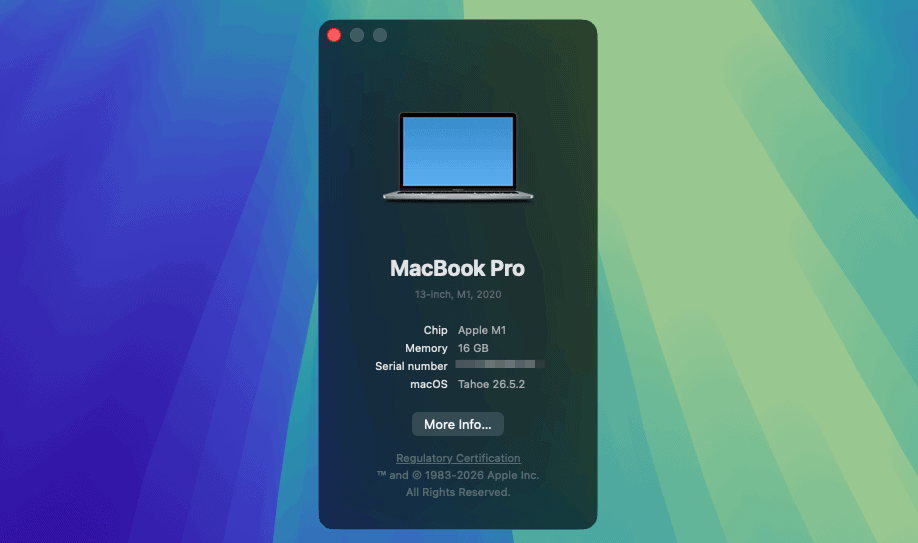
- If it says Intel, follow the Intel instructions below.
Step 3: Boot Into Recovery Mode
For Intel-Based Macs
- Press the power button to turn on your Mac.
- Immediately press and hold Command (⌘) + R.
- Keep holding the keys until the Apple logo or a spinning globe appears.
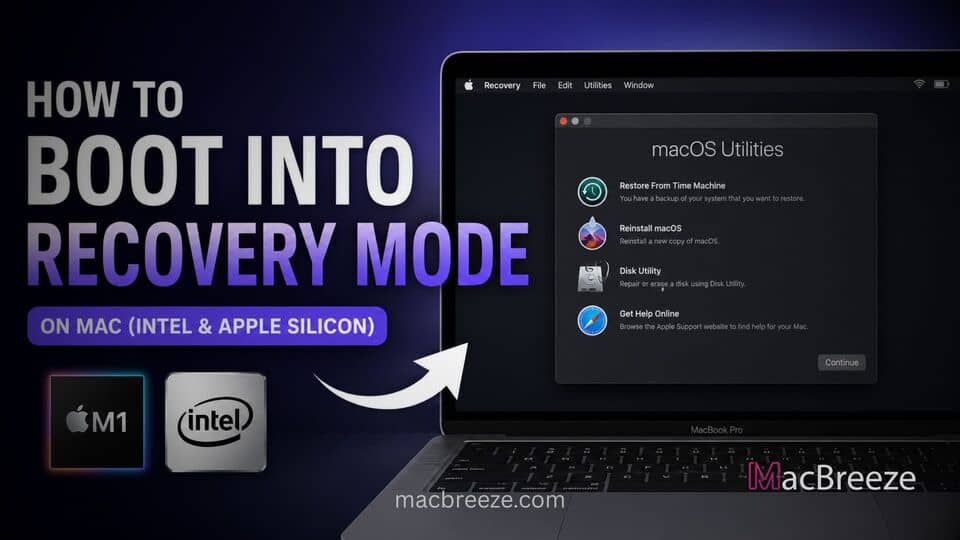
- Release the keys when the macOS Utilities window appears.
Your Mac has now successfully entered Recovery Mode.
For Apple Silicon Macs (M1, M2, M3, M4, and M5)
- Press and hold the power button.
- Keep holding it until Loading startup options appears (usually around 10 seconds).
- Select Options, then click Continue.
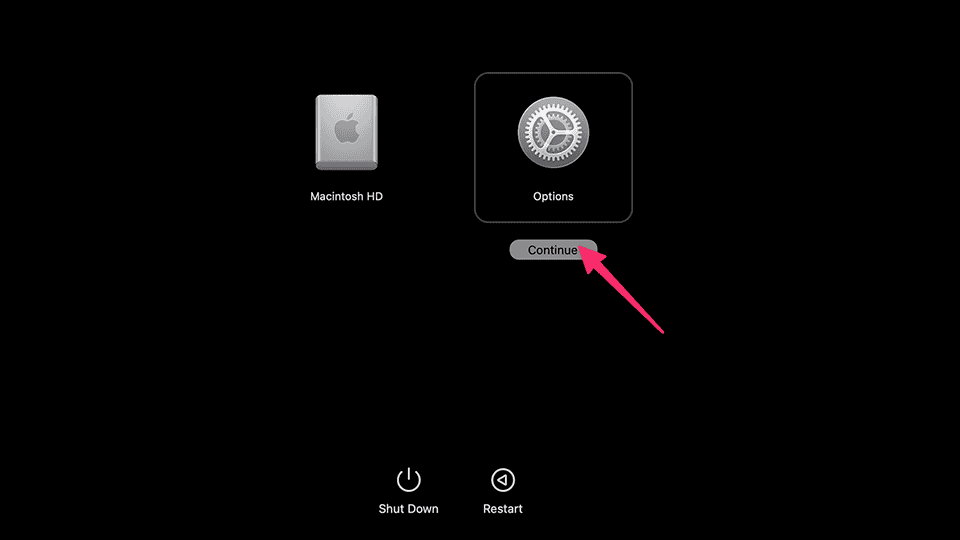
- If prompted, choose your administrator account and enter its password.
- The macOS Utilities screen will open, indicating that Recovery Mode is ready.
What Can You Do in macOS Recovery?
After entering Recovery Mode, you'll have access to several powerful recovery tools.
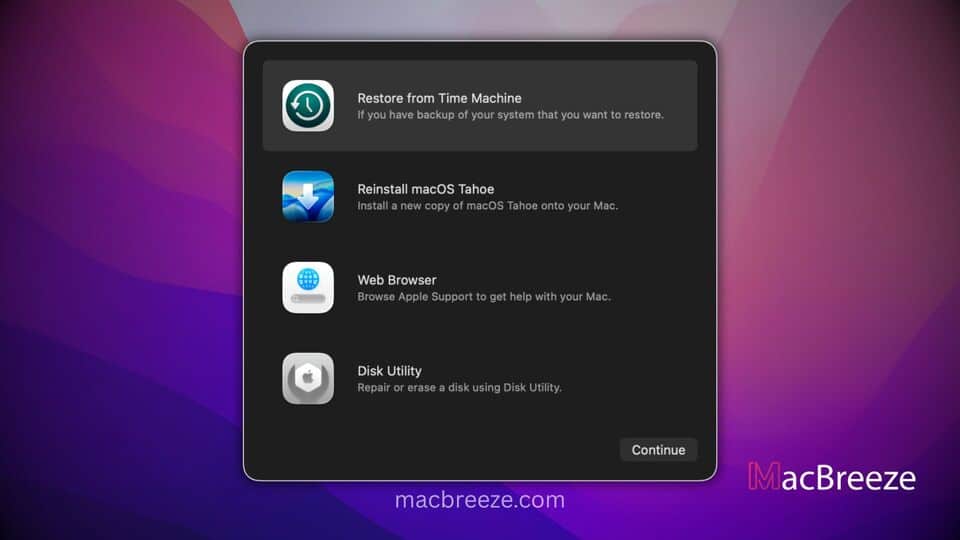
- Restore from Time Machine Backup – Restore your Mac using a previous backup.
- Reinstall macOS – Download and install a fresh copy of macOS without erasing your personal files (unless you choose to erase the drive first).
- Disk Utility – Repair, erase, partition, or manage your storage drives.
- Safari – Browse Apple support documentation if you're connected to the internet.
- Terminal – Access advanced command-line troubleshooting tools.
Recovery Mode Not Working? Try These Fixes
1. Check Your Timing
- On Intel Macs, you must press Command (⌘) + R immediately after pressing the power button.
- If Windows, Linux, or macOS starts normally, shut down and try again.
If your Mac can still start but you need a simpler troubleshooting environment, you can also boot your Mac into Safe Mode to check whether startup software, login items, or system extensions are causing the problem.
2. Use Internet Recovery (Intel Macs)
If your Recovery partition is damaged or missing, Internet Recovery can download recovery tools directly from Apple's servers.
- Turn off your Mac.
- Press the power button.
- Immediately hold Option (⌥) + Command (⌘) + R.
- Release the keys when a spinning globe appears.
- Connect to Wi-Fi if prompted and wait for Internet Recovery to load.
3. Verify Your Keyboard
- If you're using a wireless keyboard, try a wired keyboard if available.
- Bluetooth keyboards may not connect quickly enough during startup.
4. Keep Your Mac Connected to Power
Always keep your MacBook plugged into its charger while reinstalling macOS or repairing your startup disk to prevent unexpected shutdowns.
Tips Before Using Recovery Mode
- Create a backup whenever possible before making changes to your startup disk.
- If FileVault is enabled, you'll need your administrator password to continue.
- Only erase your startup disk if you're certain you no longer need the existing data.
- Ensure you have a stable internet connection if you plan to reinstall macOS.
Conclusion
Knowing how to boot into Recovery Mode on your Mac is essential for troubleshooting startup problems, reinstalling macOS, repairing disks, and restoring backups. Intel Macs use the familiar Command (⌘) + R shortcut during startup, while Apple Silicon Macs require holding the power button until the startup options appear.
Once inside macOS Recovery, you'll have access to powerful built-in tools that can help restore your Mac to working condition without needing additional software.