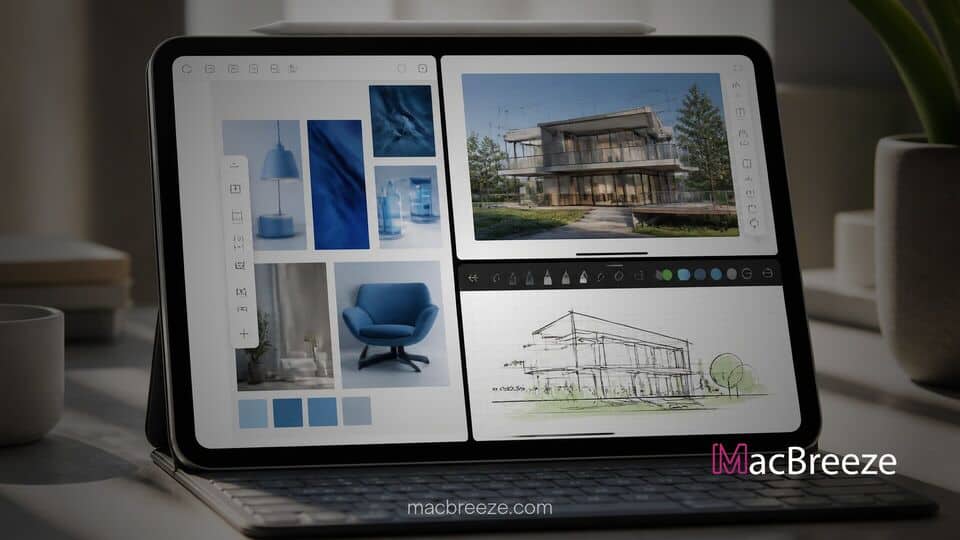
Apple has officially released iPadOS 27.2, introducing a practical software refinement designed to streamline side-by-side app workflows. The latest update addresses long-standing user feedback by eliminating several manual steps previously required to configure dual-window layouts on iPad screens.
Alongside broad productivity enhancements and security fixes across the platform, the software build delivers an immediate pick-a-second-app prompt during window snapping. This subtle workflow change brings the tablet platform closer to modern multi-screen interfaces while maintaining the core versatility expected from iPad hardware.
New App Tiling Workflow in iPadOS 27.2
The headline productivity adjustment in iPadOS 27.2 revolves around reducing friction when setting up side-by-side apps. Under official release notes provided by Apple, side-by-side multitasking is easier to set up with the option to choose a second app whenever users tile applications to the left or right with window controls or the system menu bar.
Rather than leaving half of the display empty or forcing users into separate gestures, the system immediately presents an interactive chooser. This streamlined behavior reflects Apple's broader emphasis on refining tablet window management following major architecture shifts introduced in earlier operating system releases.
How the Updated Split View Trigger Works
When working with a single active application, moving that window to either half of the screen using the top window controls or menu bar instantly shifts the workspace. The primary window tiles neatly into place, while the remaining portion of the display exposes the Home Screen and recent application picker.
Users can then complete the Split View arrangement by tapping any second app icon. This eliminates extra swipes or manual window positioning steps that previously interrupted active workflows. Furthermore, built-in keyboard shortcuts respond to the same sequence, allowing power users attached to magic keyboards or desktop setups to pair software windows in fractions of a second.
Key Differences From Previous iPad Multitasking
To appreciate the change, it helps to review how pairing apps operated in prior versions. In iPadOS 26, configuring two applications side-by-side required opening the initial program, dragging window edges to resize, swiping up from the bottom edge to invoke the Dock or App Library, dragging out a second app icon, and manually snapping both frames into place.
Many users criticized that older process for being unnecessarily cumbersome on touchscreen hardware. The new workflow significantly shortens the path from single-app focus to dual-app execution. While users could already benefit from security updates in releases like Apple Patches 163 Security Flaws in iOS 27.2 and iPadOS 27.2 Updates, this interface polish addresses daily usability directly.
Influence of iPhone Duo Multitasking System
Industry analysts and software reviewers have noted that the refined Split View experience appears heavily influenced by the dual-screen interface built for the iPhone Duo. When early foldable adopters experienced the handset's automated side-by-side pairing, praise focused on how intuitive software tiling felt compared to classic iPad layouts.
While software updates for foldables continue to mature, as seen when Early iPhone Duo Users Face Pillarboxing in Unoptimized Apps, the fundamental user interaction logic has trickled upward to iPadOS. Apple's decisions demonstrate a cross-pollination of user interface design across its growing ecosystem of multi-screen and large-display personal computing devices.
How to Use the Improved Split View Controls
Getting started with the updated app tiling feature requires an iPad running iPadOS 27.2 or later. Users can trigger the updated workflow using simple display steps:
- Open any primary application on your iPad screen.
- Tap the window control indicator or access the menu bar options at the top of the app window.
- Select the option to tile the app to the left or right half of the display.
- Observe the main app slide into position as the Home Screen automatically reveals available software.
- Tap your chosen secondary app icon to immediately lock both programs side-by-side.
This layout enhancement complements recent hardware hardware changes, including specialized display capabilities detailed when the Apple Regulatory Listing Hints at New iPad Mini Dimensions via Smart Folio and software updates like Apple Adds On-Device Selfie Age Verification to iOS 27.2 Update.
Additionally, users managing creative suites alongside tools mentioned in Apple Updates iWork Suite With Creator Studio AI Assistant and Duo Support will find side-by-side research and drafting far less intrusive.
By shortening the steps required to split screens, Apple has delivered a practical utility fix that restores speed and simplicity to tablet productivity, ensuring iPad users can focus on their tasks rather than struggling with window management.