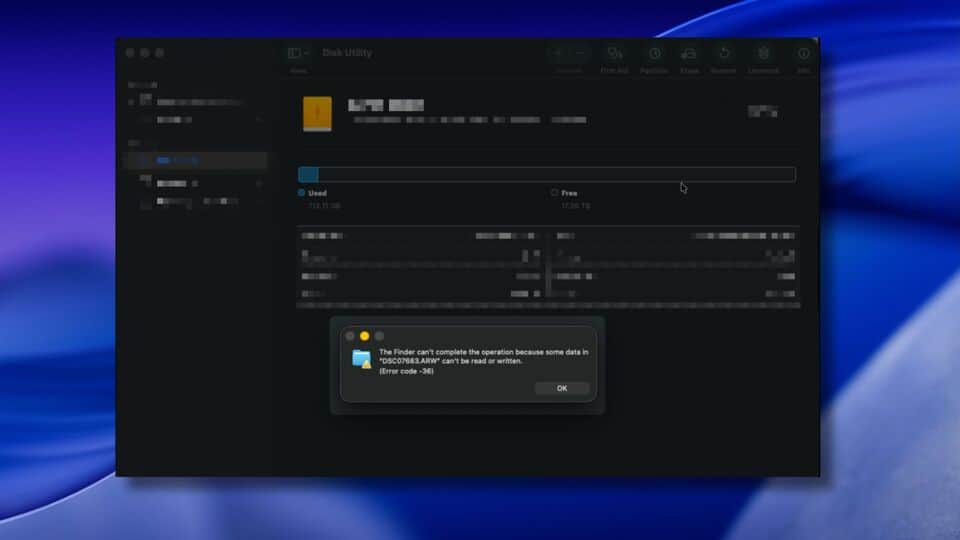
If you’re seeing the message “Error 36: The Finder can’t complete the operation because some data in can’t be read or written” while using your Mac, you’re not alone. The Error 36 Finder Can’t Complete the Operation issue can be both confusing and frustrating, especially when you need to transfer, move, or copy files.
This problem occurs when the Finder encounters files it cannot read or write, often due to file corruption, hidden ".DS_Store" files, file system issues, or compatibility problems. Most commonly, it affects files copied between drives, USB sticks, network locations, or external disks formatted in older formats.
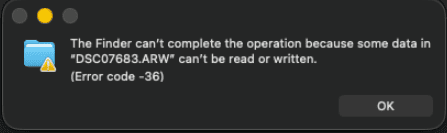
Luckily, we have found ways to troubleshoot this problem. In the next part, you will get the steps to solve the error 36 on the Finder.
Solutions to Fix Error 36 Finder Can't Complete the Operation
Try these step-by-step steps before trying the actual solutions to resolve error 36 on your Mac.
- Ensure your Mac is fully updated (macOS and apps)
- Restart the Finder or your Mac before starting
- Check if the error occurs with different files or on a different drive
- Safely eject and remount the external drives involved
If the problem still exists, follow these steps one by one:
1. Delete Hidden .DS_Store Files Using Terminal
Corrupted .DS_Store files can trigger Error 36. Removing them can often resolve the issue.
- Open Terminal (find it via Spotlight or in Applications > Utilities).
- Type the following command, replacing /path/to/folder with your file's directory:
find /path/to/folder -name '*.DS_Store' -type f -delete - Hit Enter.
- Close Terminal and try your file operation again in Finder.
2. Use the dot_clean command
Some hidden .dot files are known to cause error 36 on finder. So, I suggest you use this command to clean up the problematic folder to fix the actual problem.
- At first, open the Terminal like before.
- Type the following command, but don't press Enter:
dot_clean - Now, type the path of the folder or drag the folder directly into the terminal and press Enter.
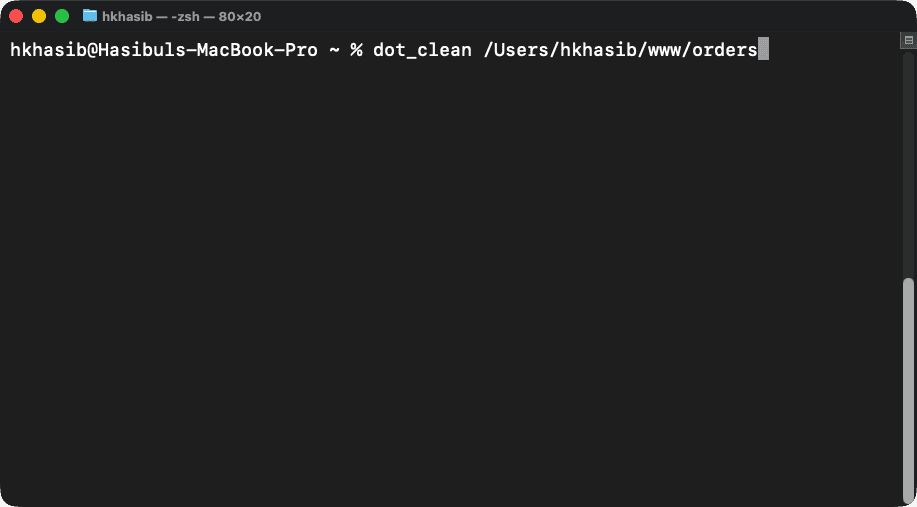
It will clean the problematic hidden files and solve the problem.
3. Address permission issues
As the error message clearly defines that some data can't be read or written, it is very likely to be a permission problem. So, I suggest you follow these steps to see if it helps:
- Open Finder.
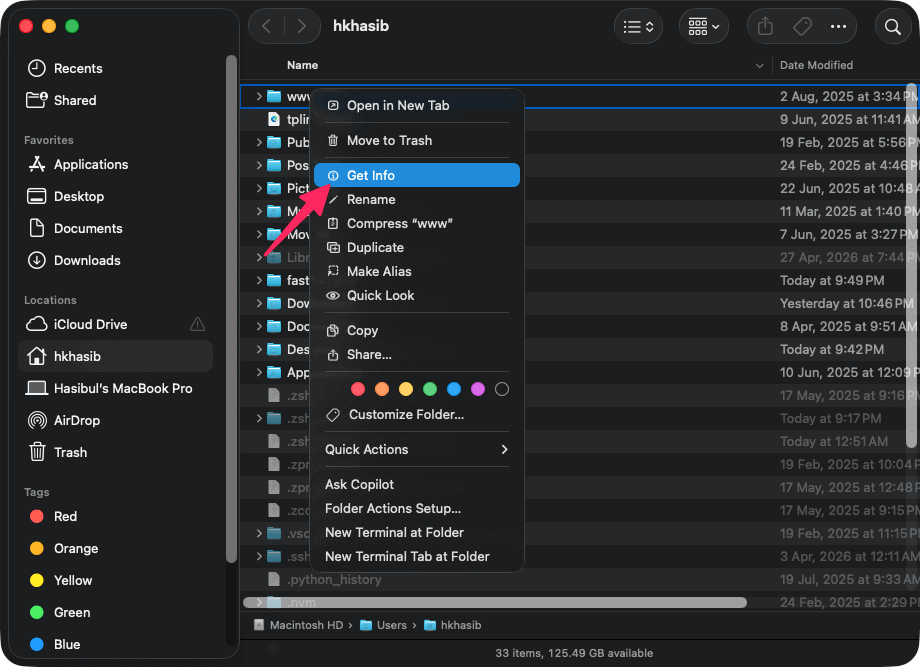
- Right-click on the problematic directory and go to Get Info.
- Expand the Sharing and Permission as shown in the screenshot.
- Click on the drop-down next to your current username and then ensure that the Read & Write is selected.
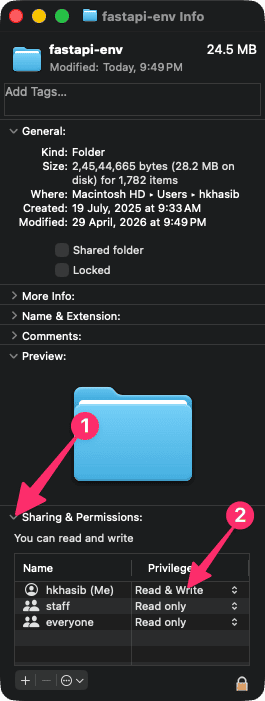
- If not, click the lock icon below, enter your password, and change permissions as needed.
After that, you can try to verify if it has fixed the finder can't complete the operation error 36 or not.
4. Use Disk Utility's First Aid
Disk permission or file system errors can prevent files from being read or written. First Aid can check and repair such errors.
- Open Disk Utility (find it using Spotlight or Applications > Utilities).
- Select the disk or external drive causing the error from the sidebar.
- Click First Aid at the top, then click Run.
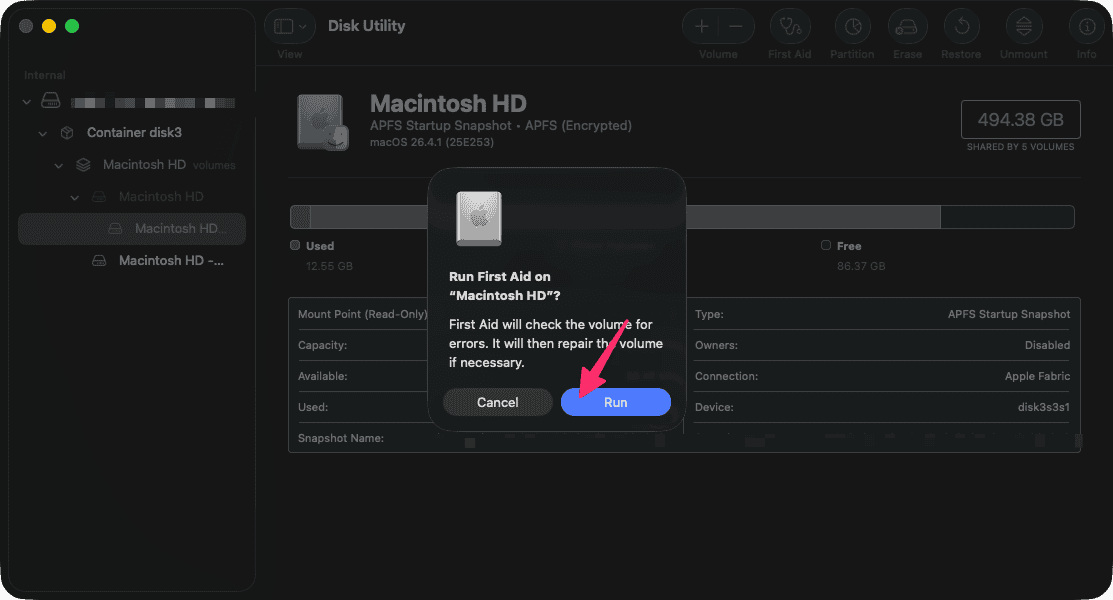
- Follow the on-screen instructions and let First Aid complete.
- Try copying or moving the files again after the process finishes.
5. Copy Files Using Terminal (Command Line)
If Finder can't copy a file, the Terminal’s cp command sometimes can bypass Finder restrictions.
- Open Terminal.
- Type the following, replacing /source/path/file and /destination/path/ accordingly:
cp -R /source/path/file /destination/path/ - Press Enter. If copying a folder, make sure you use -R to copy recursively.
- Check the destination folder to see if the operation succeeded.
6. Reformat the External Drive (If Applicable)
A file system incompatibility (especially with old FAT32/NTFS media) can cause Error 36. Reformatting may help, but backs up all data first.
- Connect your external drive to your Mac.
- Open Disk Utility.
- Select the external drive and click Erase.
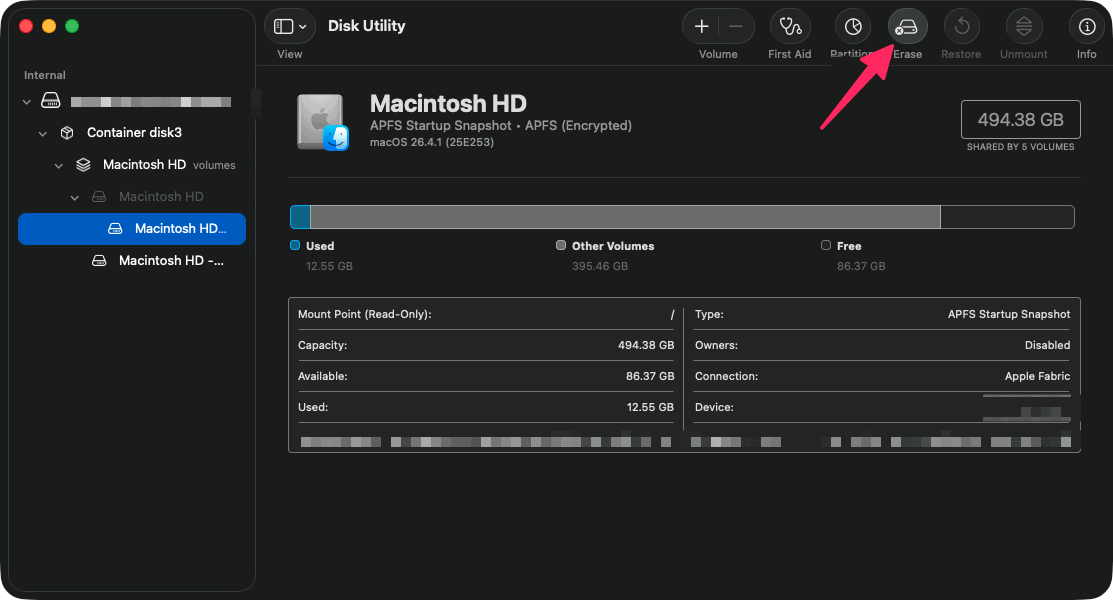
- Choose a compatible Mac format (like APFS or Mac OS Extended (Journaled)).
- Give the drive a name and click Erase.
- (Optional) Move your data back and try to copy files again.
7. Try Safe Mode and Third-Party Drives
If the above steps fail, Safe Mode can disable problematic extensions, and a third-party tool like Tuxera NTFS can help with non-native formats.
- Restart your Mac and hold Shift during startup to enter Safe Mode.
- Try copying files again in Safe Mode.
- (Optional) Use a third-party utility for NTFS or exFAT drives if needed.
How to Prevent This Issue in the Future
Preventing Error 36 Finder Can't Complete the Operation can save you time and protect your data. Always eject external drives properly, regularly check your disks for errors using Disk Utility, keep your system updated, and avoid interrupting file transfers. Back up important files frequently to reduce the risk of data loss or corruption.
Encountering Error 36 Finder Can’t Complete the Operation can be disruptive, but most cases are fixable with the right steps. By following the fixes above, you can restore normal file operations on your Mac. Remember to maintain good file management practices and keep your system healthy to minimize the chances of running into this Finder error in the future.