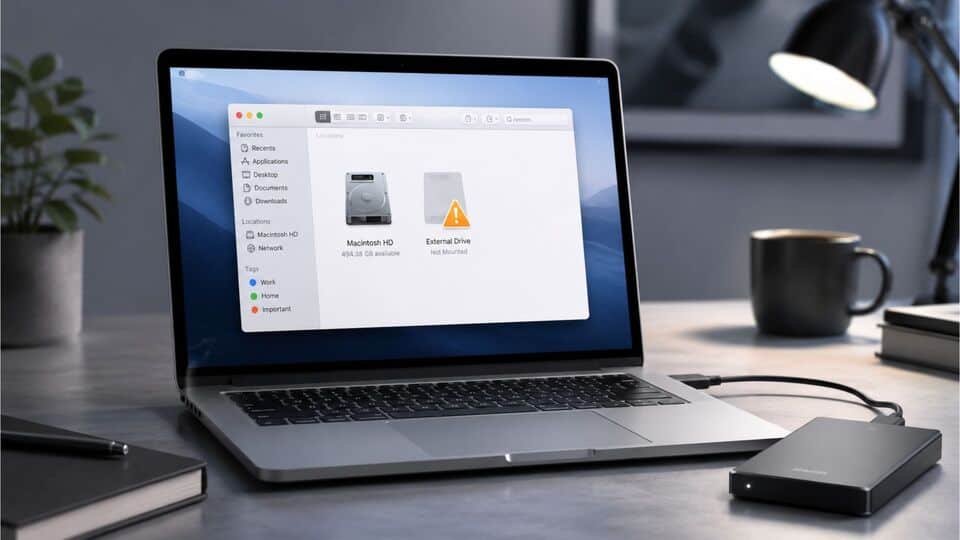
Are you facing the frustrating issue of an external hard drive not mounting on your Mac? Your important files may seem out of reach, but there are solutions to get your drive working again.
No matter which external disk you are trying to connect, whether it is from Samsung, SanDisk, Netac, Transcend, Western Digital, TwinMOS, Seagate, ADATA, Corsair, PNY, Kingston, or any lesser-known brand, this issue may occur with any of them.
Basically, this issue occurs due to several reasons, such as hardware issues, corrupted file systems, outdated drivers, or improper formatting. It often leads to the drive not appearing in Finder or Disk Utility, making access impossible.
Solutions to Fix External Hard Drive Not Mounting on Mac
Before going through the main steps, make sure to check out those basic pre-steps:
- Check if the drive is physically connected and powered on.
- Verify the cable and USB/Thunderbolt port are functioning.
- Restart your Mac and try another USB port.
- Ensure your Mac is updated to the latest macOS version.
Now, try these reliable fixes to resolve the external hard drive not mounting issue and regain access to your storage.
1. Try a Different Port or Cable
A faulty port or cable is a common cause for an external hard drive not mounting.
- Safely disconnect your external hard drive.
- Connect it using a different USB or Thunderbolt port on your Mac.
- If possible, swap to another data cable.
- Check if the drive mounts in Finder or Disk Utility.
2. Check Finder Preferences
Sometimes, the external drive may be connected but not displayed. Adjust Finder settings to ensure visibility.
- Open Finder.
- In the top left, click Finder > Settings (or Preferences).
- Select the Sidebar tab.
- Ensure "External disks" is checked under Locations.
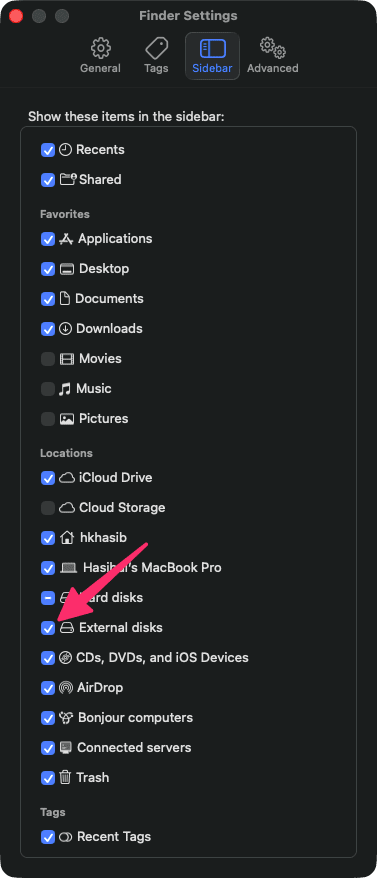
- Replug your external hard drive and check Finder.
If you face problem while opening Finder, this article may help you: Fix the Application Finder can't be Opened -1 on Mac.
3. Use Disk Utility to Mount the Drive
Disk Utility can help manually mount an external drive if it’s detected but not mounted automatically.
- Go to Applications > Utilities > Disk Utility.
- Find your external drive under External in the sidebar.
- If the drive is listed but greyed out, select it and click the Mount button at the top.
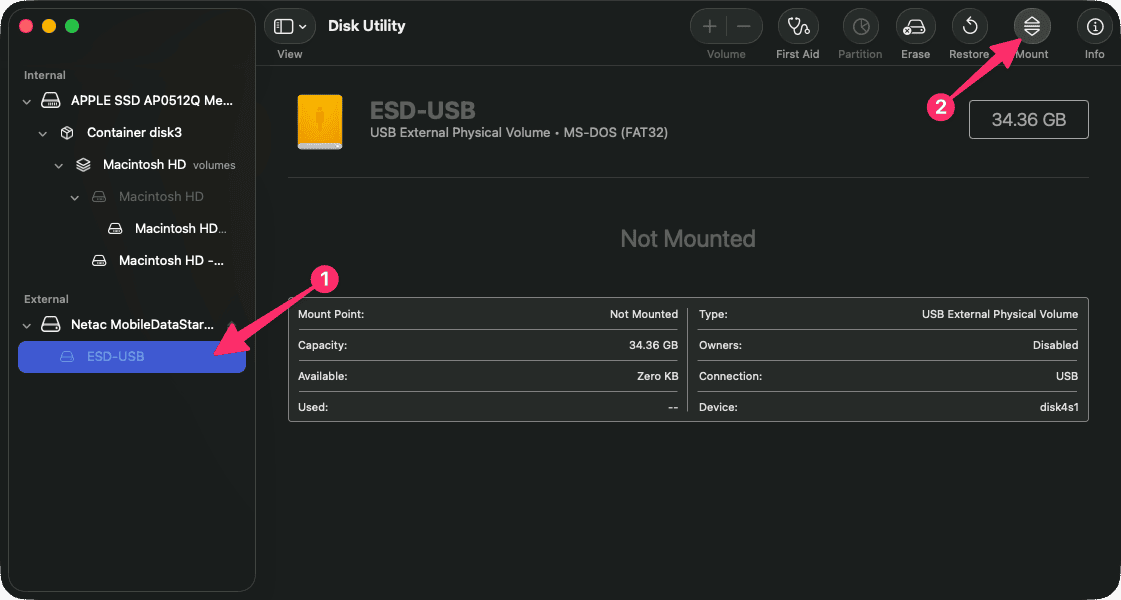
- If mounting fails, try the next solution.
4. Repair Drive with First Aid
Corrupted disk structures can prevent mounting. Use First Aid in Disk Utility to repair the drive.
- Open Disk Utility as above.
- Select your problematic external drive from the sidebar.
- Click the First Aid button at the top.
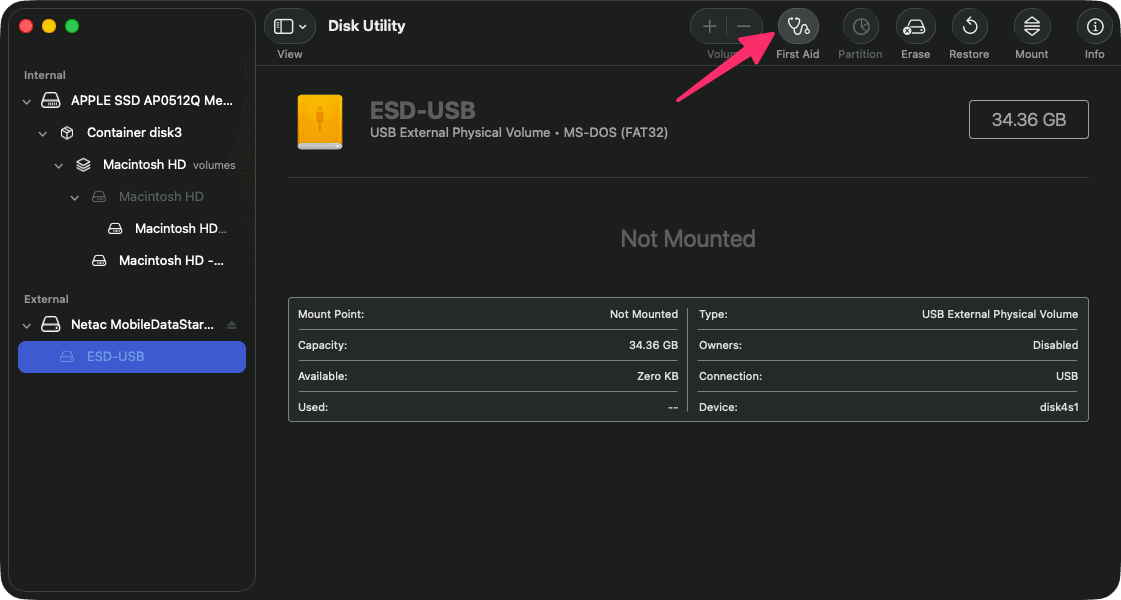
- Allow the scan and repair process to complete.
- Once finished, attempt to mount the drive again.
5. Reset NVRAM/PRAM and SMC
Sometimes, Mac's hardware management settings block external devices. Resetting these can help.
- Shut down your Mac.
- For Intel Macs: Turn on your Mac and immediately hold Option + Command + P + R for about 20 seconds to reset NVRAM/PRAM.
- To reset SMC (for MacBooks with a T2 chip): Shut down, press and hold Control + Option + Shift (right side) + power button for 7 seconds. Release all keys and turn on your Mac.
- Reconnect the drive and check if it mounts.
6. Reformat the External Hard Drive
If the drive appears in Disk Utility but won’t mount or repair, reformatting may be necessary (this erases all data on the drive).
- Open Disk Utility and select the external drive.
- Click Erase in the toolbar.
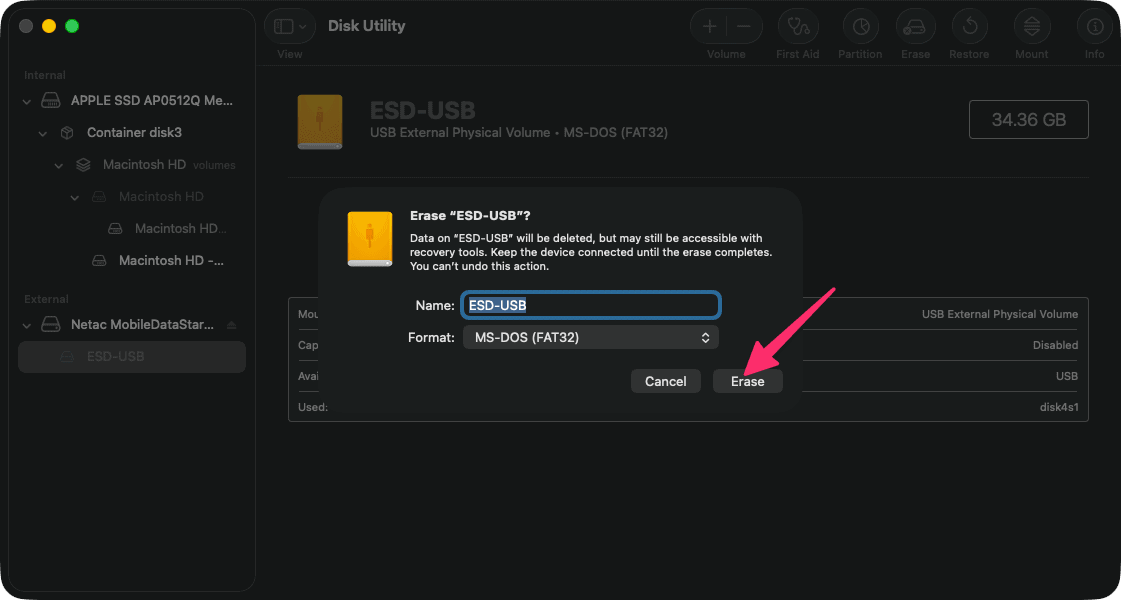
- Choose a format compatible with Mac, such as APFS or Mac OS Extended (Journaled).
- Follow the prompts to complete erasing and reformatting.
- Try mounting the drive again after reformatting.
Having a low disk storage problem on Mac? You can try out CleanMyMac X or any similar tools to remove junk and temporary files. That will help to regain valuable disk space.
How to Prevent This Issue in the Future
To avoid future problems with external hard drives not mounting on Mac, always eject drives safely before disconnecting. Use high-quality, compatible cables and keep your macOS updated. Regularly back up your data so you’re protected against data loss if issues occur again.
By following these steps, you can resolve the external hard drive not mounting problem on your Mac and safeguard your important files. Prompt troubleshooting ensures your storage devices work reliably whenever you need them.