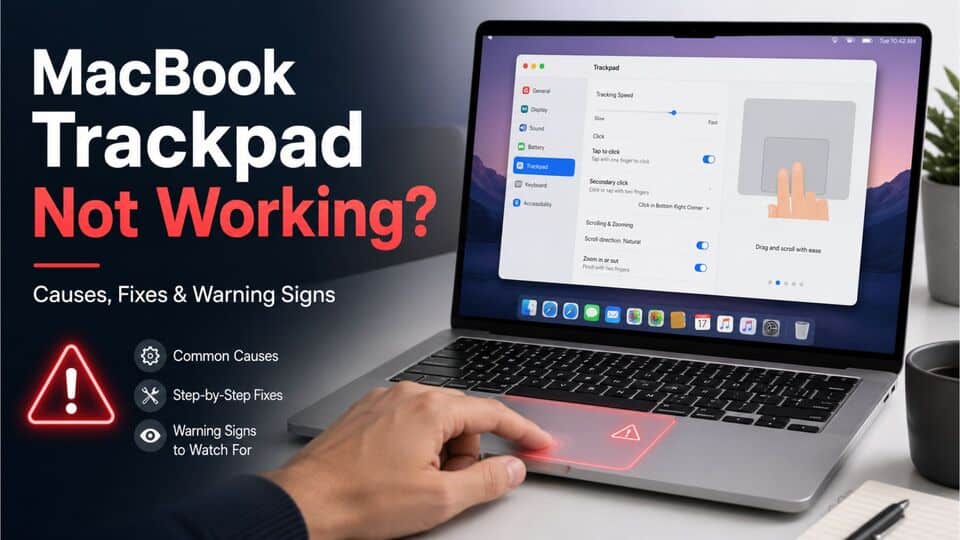
If your MacBook trackpad is not working, feels stuck, does not click, or suddenly loses haptic feedback, you are not alone. Trackpad problems can happen on both Intel and Apple Silicon MacBooks, and the cause is not always serious.
In many cases, an unresponsive Mac trackpad is caused by a software glitch, incorrect Trackpad settings, outdated macOS, Bluetooth or USB device conflicts, corrupted preference files, dirt around the trackpad edge, or a temporary system bug. However, if the trackpad is physically raised, difficult to press, or the bottom case looks swollen, the problem may be related to battery swelling or internal hardware damage.
This guide walks you through the safest and most effective ways to fix a MacBook trackpad that is not responding, not clicking, stuck, or missing haptic feedback.
Quick Checks Before Troubleshooting
Before changing advanced settings, start with these simple checks. They often fix temporary trackpad issues within a few minutes.
- Restart your MacBook and test the trackpad again.
- Charge your MacBook or keep it plugged in while troubleshooting.
- Disconnect external mice, keyboards, hubs, docks, drawing tablets, and Bluetooth pointing devices.
- Clean the trackpad surface with a dry, soft microfiber cloth.
- Check whether the trackpad feels physically stuck, raised, uneven, or unusually hard to press.
- If you use a screen protector, palm rest cover, keyboard cover, or case, remove it temporarily and test again.
If the pointer moves but the click does not work, turn on Tap to click temporarily so you can continue using your Mac while troubleshooting.
Common Reasons Your MacBook Trackpad Stops Working
A MacBook trackpad can fail in different ways. Understanding the symptom helps you choose the right fix.
- Trackpad not moving the cursor: This may be caused by a system freeze, Bluetooth mouse conflict, macOS bug, or hardware issue.
- Trackpad moves but does not click: This can happen because of haptic feedback settings, corrupted trackpad preferences, Safe Mode conflicts, or trackpad hardware failure.
- Trackpad click feels weak or missing: On Force Touch trackpads, the “click” is simulated by haptic feedback. If haptics stop working, the trackpad may feel dead even when cursor movement still works.
- Trackpad is stuck or hard to press: Dirt, debris, pressure from the battery, or physical damage may be the cause.
- Trackpad is raised or uneven: Stop using the MacBook and check for a swollen battery immediately.
If your main issue is the click vibration only, read this related guide: Trackpad haptic feedback not working on MacBook.
How to Fix a MacBook Trackpad Not Working
Follow the steps below in order. Start with the simple software fixes, then move to deeper resets and hardware checks.
1. Check Trackpad Settings
Incorrect Trackpad settings can make your MacBook feel unresponsive, especially if Tap to click, tracking speed, secondary click, or Force Click settings were changed accidentally.
- Click the Apple menu ().
- Open System Settings or System Preferences.
- Go to Trackpad.
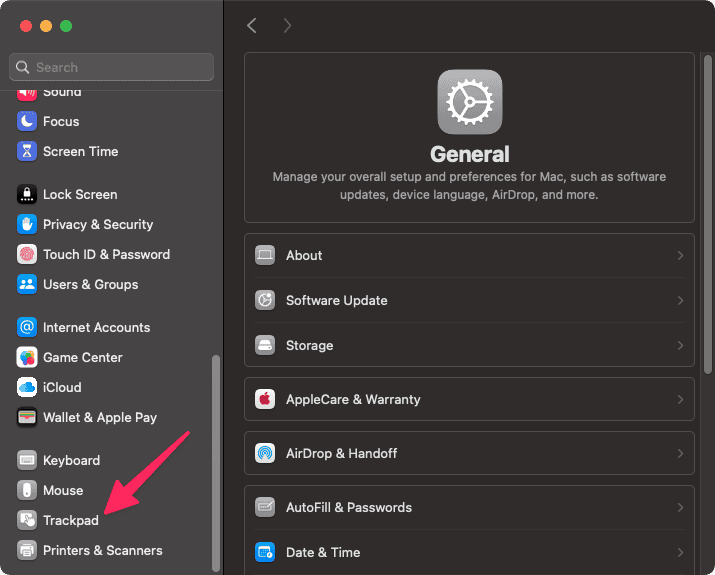
- Open the Point & Click tab.
- Enable Tap to click if the physical click is not working.
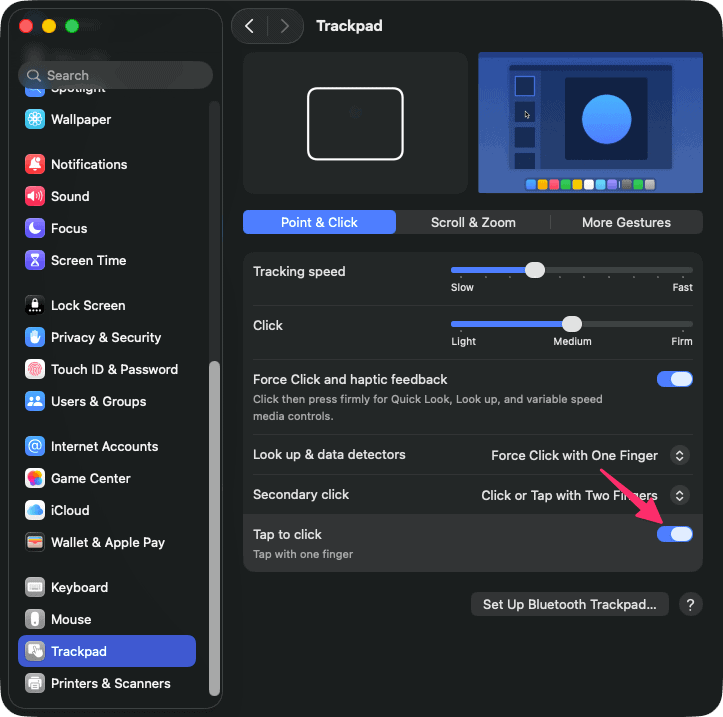
- Adjust Tracking speed and Click pressure.
- If your Mac supports it, make sure Force Click and haptic feedback is enabled.
Now test the trackpad again. If the cursor moves normally but the click feedback is missing, the issue may be related to Force Touch or haptic feedback rather than the full trackpad.
2. Turn Force Click and Haptic Feedback Off and On Again
Some MacBook users report that the trackpad still moves the cursor but no longer gives the “clicky” vibration. This is common with Force Touch trackpads because the click sensation is produced electronically.
- Open System Settings.
- Go to Trackpad.
- Open Point & Click.
- Turn off Force Click and haptic feedback.
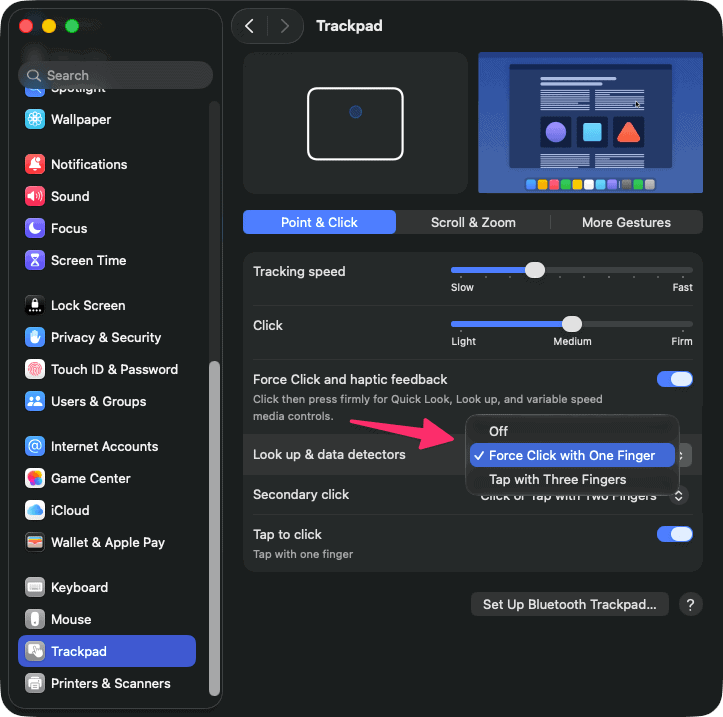
- Restart your MacBook.
- Go back to Trackpad settings and turn it on again.
If the haptic click comes back temporarily and disappears again, it may be a software bug, corrupted preference file, or failing haptic engine.
3. Disconnect External Devices
External accessories can interfere with the built-in trackpad. This includes Bluetooth mice, Magic Trackpad, USB receivers, hubs, docks, game controllers, drawing tablets, and some third-party input tools.
- Unplug all USB-C, Thunderbolt, and USB accessories.
- Turn off Bluetooth temporarily from System Settings > Bluetooth.
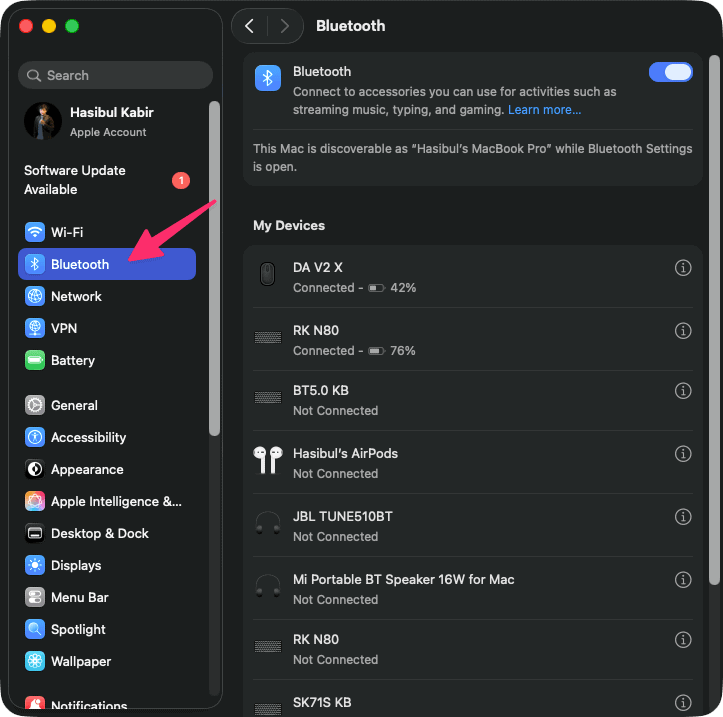
- Restart your MacBook.
- Test the built-in trackpad before reconnecting anything.
In case the trackpad works after disconnecting accessories, reconnect devices one by one to find the conflict.
However, if your built-in MacBook trackpad is unreliable and you need to keep working while troubleshooting, an external trackpad can be a useful temporary option. Apple's Magic Trackpad gives you the same gesture-based macOS experience without depending on the built-in trackpad.
Apple Magic Trackpad 2 (Wireless, Rechargable)

Brand: Apple
Dimension: 6.9 x 5 x 0.8 inches
Connectivity: Bluetooth
Requirements: Bluetooth 4.0-enabled Mac with OS X v10.11 or later
Warranty: 1 Year
Click Here4. Clean the Trackpad and Its Edges
Dirt, dust, moisture, crumbs, or sticky residue around the trackpad edge can make the trackpad feel stuck or less responsive.
- Shut down your MacBook.
- Unplug the charger and all accessories.
- Use a dry microfiber cloth to clean the trackpad surface.
- Gently clean around the trackpad edges with a soft brush or dry cloth.
- Do not pour liquid, alcohol, or cleaning solution directly onto the trackpad.
If the trackpad feels mechanically jammed, avoid forcing it. Excessive pressure can damage the trackpad, battery, or top case.
5. Update macOS
macOS updates can include firmware, driver, and input-device fixes. If the issue started after a macOS update, installing the next available update may also help.
- Click the Apple menu ().
- Open System Settings.
- Go to General > Software Update.
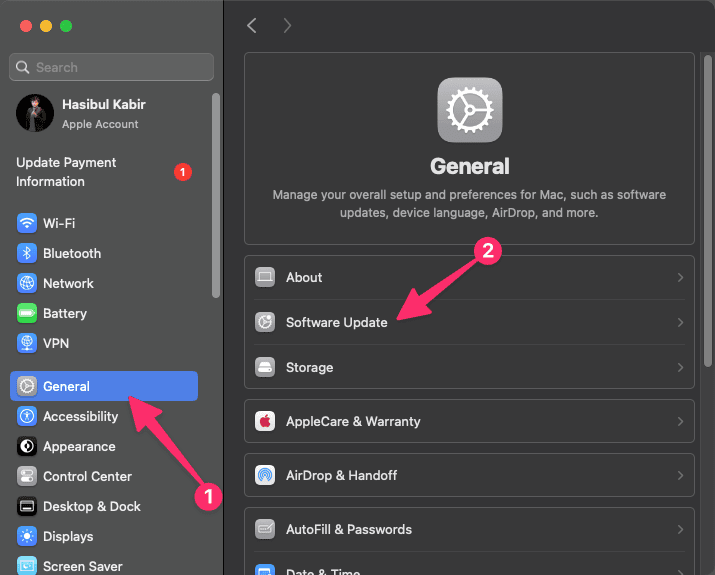
- Install any available macOS update.
- Restart your MacBook after the update completes.
After restarting, test cursor movement, Tap to click, physical click, scrolling, gestures, and haptic feedback.
6. Restart in Safe Mode
Safe Mode loads only essential system components and prevents many third-party extensions, login items, and background tools from running. This helps you find out whether software is causing the trackpad issue.
For Apple Silicon Macs
- Shut down your MacBook completely.
- Press and hold the power button until startup options appear.
- Select your startup disk.
- Hold the Shift key and click Continue in Safe Mode.
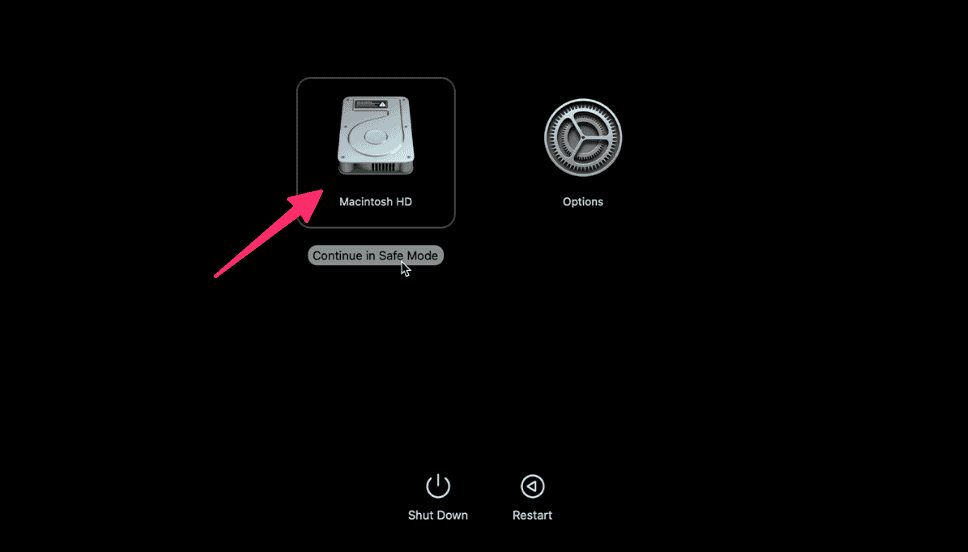
- Log in and test the trackpad.
For Intel Macs
- Shut down your MacBook.
- Turn it on and immediately hold the Shift key.
- Release the key when the login window appears.
- Log in and test the trackpad.
If the trackpad works in Safe Mode but not in normal mode, check your login items, recently installed apps, mouse utilities, keyboard remappers, window managers, or third-party driver tools.
7. Delete Trackpad Preference Files
Corrupted preference files can cause strange trackpad behavior, including broken gestures, missing haptics, or incorrect click settings. Deleting these files forces macOS to rebuild fresh trackpad preferences.
- Open Finder.
- Click Go in the menu bar.
- Hold the Option key and click Library.
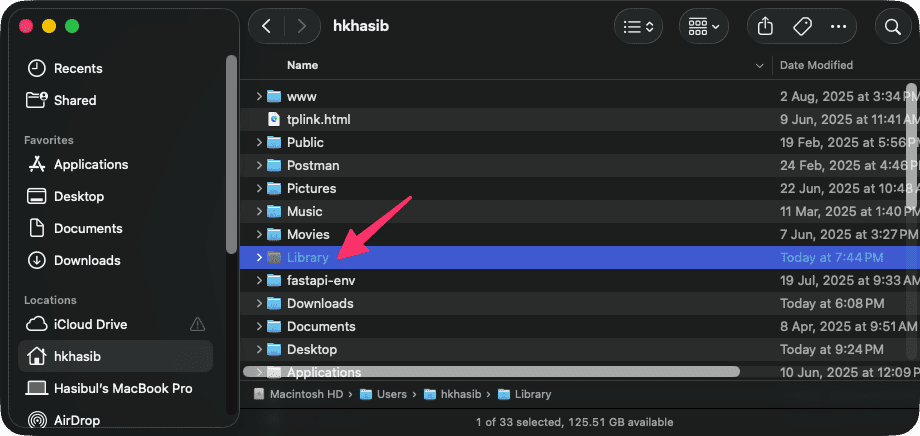
- Open the Preferences folder.
- Look for files related to the trackpad, such as com.apple.AppleMultitouchTrackpad.plist and com.apple.preference.trackpad.plist.
- Move them to the Trash or to a backup folder on your Desktop.
- Restart your MacBook.
After restarting, return to System Settings > Trackpad and reconfigure your preferred settings.
8. Reset NVRAM or PRAM on Intel Macs
NVRAM stores small system settings. Resetting it can help with some hardware-interface problems on Intel-based Macs.
- Shut down your MacBook.
- Turn it on and immediately hold Option + Command + P + R.
- Keep holding the keys for about 20 seconds.
- Release the keys and let your Mac boot normally.
Apple Silicon Macs handle this differently, so you do not need to manually reset NVRAM on M1, M2, M3, or M4 MacBooks.
9. Reset the SMC on Intel Macs
The SMC controls low-level power and hardware functions on Intel Macs. If the trackpad issue is connected to power, sleep, battery, or hardware behavior, an SMC reset may help.
- Shut down your MacBook.
- Press and hold Shift + Control + Option on the left side of the keyboard.
- While holding those keys, press and hold the power button.
- Keep holding all keys for 10 seconds.
- Release all keys.
- Press the power button again to turn on your MacBook.
For Apple Silicon MacBooks, a separate SMC reset is not required. Shut down the Mac, wait around 10 seconds, then turn it back on.
10. Run Apple Diagnostics
If your MacBook trackpad is still not working after the software fixes, run Apple Diagnostics to check for possible hardware problems.
For Apple Silicon Macs
- Shut down your MacBook.
- Press and hold the power button until startup options appear.
- Press Command + D to start Apple Diagnostics.
For Intel Macs
- Shut down your MacBook.
- Turn it on and immediately hold the D key.
- Follow the on-screen instructions.
If Apple Diagnostics shows a trackpad-related code such as NDR005 or NDR006, there may be a trackpad hardware issue. If the trackpad works normally but the diagnostic code still appears, disconnect external input devices and run the test again. If the code remains, contact Apple Support or a trusted repair technician.
When the Trackpad Problem May Be Hardware-Related
Software fixes will not solve every trackpad issue. Stop troubleshooting and consider professional repair if you notice any of these signs:
- The trackpad is raised, tilted, or physically bulging.
- The bottom case of the MacBook is swollen.
- The trackpad is hard to press or does not sit evenly.
- The click disappeared after liquid damage or a drop.
- The cursor jumps, freezes, or moves randomly even after a clean restart.
- Apple Diagnostics reports a trackpad error code.
- The trackpad works for a short time and then stops again repeatedly.
A raised or stiff trackpad can be a warning sign of battery swelling. In that case, do not press the trackpad hard and do not continue using the MacBook heavily. Read this guide next: MacBook swollen battery symptoms and what to do.
What to Do If Only Haptic Feedback Is Not Working
If your cursor movement, scrolling, and gestures work but the trackpad no longer gives a click vibration, the issue is more specific. Try these steps:
- Enable Force Click and haptic feedback in Trackpad settings.
- Adjust the click pressure from light to firm.
- Restart your MacBook.
- Test in Safe Mode.
- Delete trackpad preference files.
- Update macOS.
- Run Apple Diagnostics if the problem continues.
Because Force Touch trackpads simulate the click through haptic feedback, a missing vibration can make the trackpad feel broken even when it is still detecting touch and pressure. For a deeper explanation, visit our full guide on MacBook trackpad haptic feedback not working.
How to Prevent MacBook Trackpad Problems
You cannot prevent every hardware failure, but you can reduce the risk of trackpad problems with a few habits.
- Keep macOS updated.
- Clean the trackpad regularly with a dry microfiber cloth.
- Avoid eating or drinking near your MacBook.
- Do not press the trackpad with excessive force.
- Avoid cheap hard-shell cases that put pressure on the palm rest or bottom case.
- Remove keyboard covers before closing the lid if they are thick.
- Keep your MacBook away from moisture and extreme heat.
- Check the bottom case and trackpad area occasionally for swelling.
Frequently Asked Questions
Why is my MacBook trackpad not clicking?
Your MacBook trackpad may not click because Tap to click is disabled, Force Click settings are misconfigured, macOS has a temporary glitch, preference files are corrupted, or the trackpad hardware is failing. On Force Touch MacBooks, the click is simulated by haptic feedback, so a haptic issue can feel like a broken click.
Why does my MacBook trackpad move but not click?
If the cursor moves but clicking does not work, enable Tap to click first. Then check Force Click and haptic feedback, restart your Mac, boot into Safe Mode, and run Apple Diagnostics if the issue continues.
Can a swollen battery stop the trackpad from working?
Yes. A swollen battery can push upward from inside the MacBook and make the trackpad hard to press, uneven, stuck, or completely unresponsive. If you notice swelling, stop using the MacBook and get the battery checked immediately.
Should I reset SMC for a MacBook trackpad issue?
Resetting the SMC may help on Intel MacBooks, especially if the issue is related to power or hardware behavior. Apple Silicon MacBooks do not need a manual SMC reset; shut down the Mac, wait a few seconds, and start it again.
What does NDR006 mean on MacBook?
NDR006 is a diagnostic reference code that may indicate a possible trackpad issue. If you see this code, disconnect external pointing devices and run Apple Diagnostics again. If the code remains or the trackpad has real symptoms, contact Apple Support or a repair professional.
Final Thoughts
A MacBook trackpad not working can be caused by something simple like a disabled setting or external mouse conflict, but it can also point to deeper problems like corrupted preferences, missing haptic feedback, liquid damage, or a swollen battery.
Start with Trackpad settings, restart your Mac, update macOS, test Safe Mode, and reset preference files. If the trackpad is physically raised, stuck, or Apple Diagnostics reports an error, treat it as a hardware issue and get it inspected instead of forcing the click.