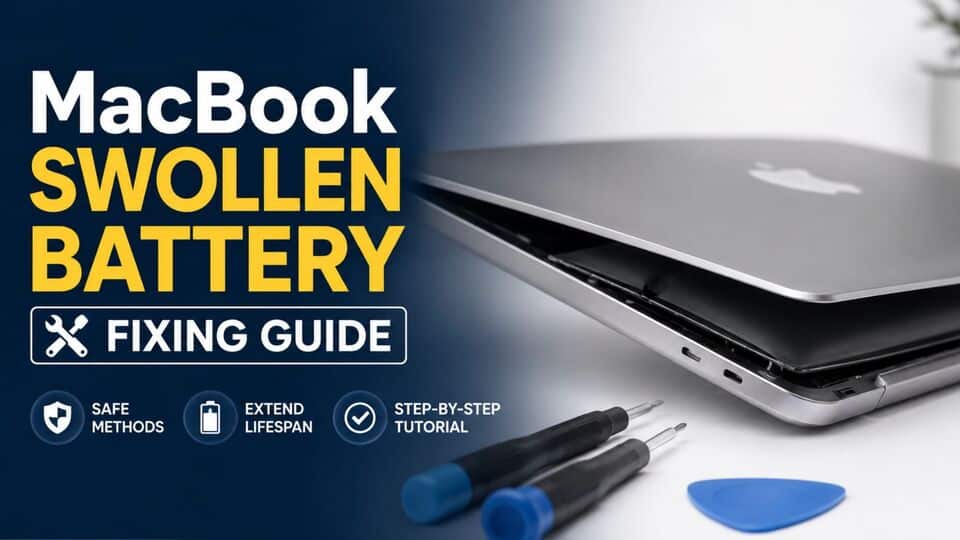
If you've noticed your device isn't sitting flat or the trackpad is hard to use, you may be facing a macbook swollen battery issue. This is a serious problem that can harm your MacBook and even put your safety at risk.
A swollen battery happens when the lithium-ion cells inside expand, often due to aging, overheating, manufacturing defects, or overcharging. Ignoring a macbook swollen battery can lead to device damage, hazardous leaks, or even fire.
How to Diagnose a Macbook Swollen Battery
Before seeking solutions, it's crucial to confirm the problem. Watch for these signs of a swollen battery:
- The bottom case of your MacBook is bulging.
- Your trackpad is hard to press or appears raised.
- Trackpad's haptic feedback may not be working.
- The keyboard or chassis is warped or doesn't sit flat.
- You notice strange hissing sounds, a sweet/chemical smell, or visible battery deformation.
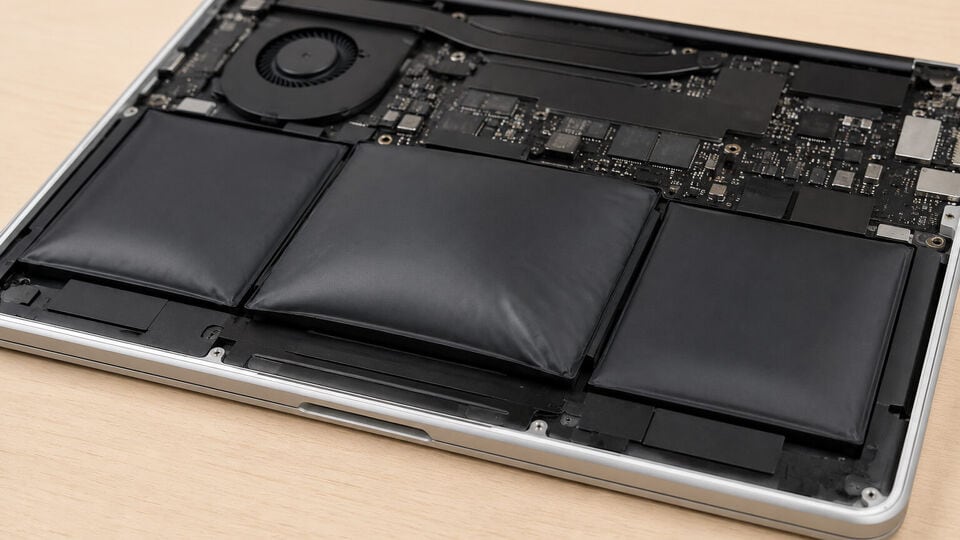
If you observe any of these symptoms, stop using your MacBook immediately. Using a device with a swollen battery is dangerous.
Solutions to Fix the MacBook Swollen Battery Problem
If you suspect or confirm a swollen MacBook battery, address it immediately to prevent injury or further damage. Here’s exactly what to do:
- Turn off your MacBook and unplug it from any power source.
- Do not charge or use your MacBook if you suspect battery swelling.
- Handle the device carefully; avoid puncturing, compressing, or pressing on the case.
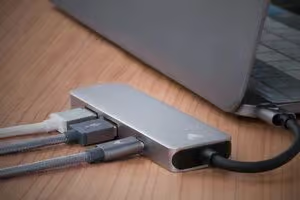
- Prepare your backup: connect an external drive to quickly back up essential data before further handling (if safe).
- Check your warranty or AppleCare coverage.
- Move your device to a cool, well-ventilated area away from flammable materials.
1. Stop Using Your MacBook Immediately
This step is crucial to avoid injury or further damage to your device.
- Shut down your MacBook using the normal shutdown process or, if unresponsive, by holding the power button.
- Unplug your laptop from any chargers or accessories.
- Do not attempt to use, charge, or troubleshoot the device further until the battery is addressed.
2. Remove the MacBook from Hazardous Locations
Swollen batteries can leak or catch fire. Keep your environment and yourself safe.
- Carefully move your MacBook onto a non-flammable, flat surface (such as stone or ceramic).
- Keep it away from paper, fabrics, or electronics.
- If the battery is hissing, hot, or leaking, do not touch and leave the area immediately. Call local hazardous waste services if needed.
3. Backup Your Data Remotely (if Safe)
If your MacBook isn't badly swollen and you can safely power it on for a short time, prioritize rescuing your data.
- Connect your external backup drive or use a cloud service for essential files.
- Quickly transfer important data—do not leave the device running longer than necessary.
- Shut down the MacBook immediately after the backup completes.
4. Contact Apple Support or an Authorized Service Provider
Battery repairs or replacement should only be performed by professionals; never attempt to remove a swollen battery yourself.
- Visit Apple’s official service page to book a repair.
- Alternatively, find an Apple Authorized Service Provider near you.
- Inform the technician about the MacBook's swollen battery issue and follow their instructions strictly.
5. Prepare Your MacBook for Safe Transport
If you're bringing your MacBook to a service center, ensure it's as safe as possible.
- Place the MacBook in a padded, open container (avoid closed bags, which trap heat).
- Label the device as having a “Swollen Battery – Handle With Care”.
- Transport the laptop in your car’s interior, not in a hot trunk.
6. Dispose of the Swollen Battery Responsibly
If a technician removes your battery, disposal must follow e-waste safety laws. Never dispose of lithium-ion batteries in regular trash.
- Ask the service center about proper disposal options.
- If you have the battery, take it to a local electronics recycling or hazardous waste center.
- Never try to puncture, crush, or incinerate the battery.
Risks of a Macbook Swollen Battery
Operating a MacBook with a swollen battery is a severe safety risk. Possible dangers include:
- Fire or explosions, particularly if the battery is punctured or compressed.
- Chemical leakage that can harm your skin or damage electronics.
- Permanent hardware damage, including to the trackpad, keyboard, and motherboard.
Do not take chances: always treat a swollen battery with caution.
How to Prevent MacBook Swollen Battery Issues in the Future
You can minimize the risk of another macbook swollen battery problem with a few simple steps:
- Only use Apple-approved chargers and accessories.
- Avoid exposing your MacBook to extreme temperatures or direct sunlight for extended periods.
- Don’t leave your laptop plugged in constantly – allow cycles of charging and discharging.
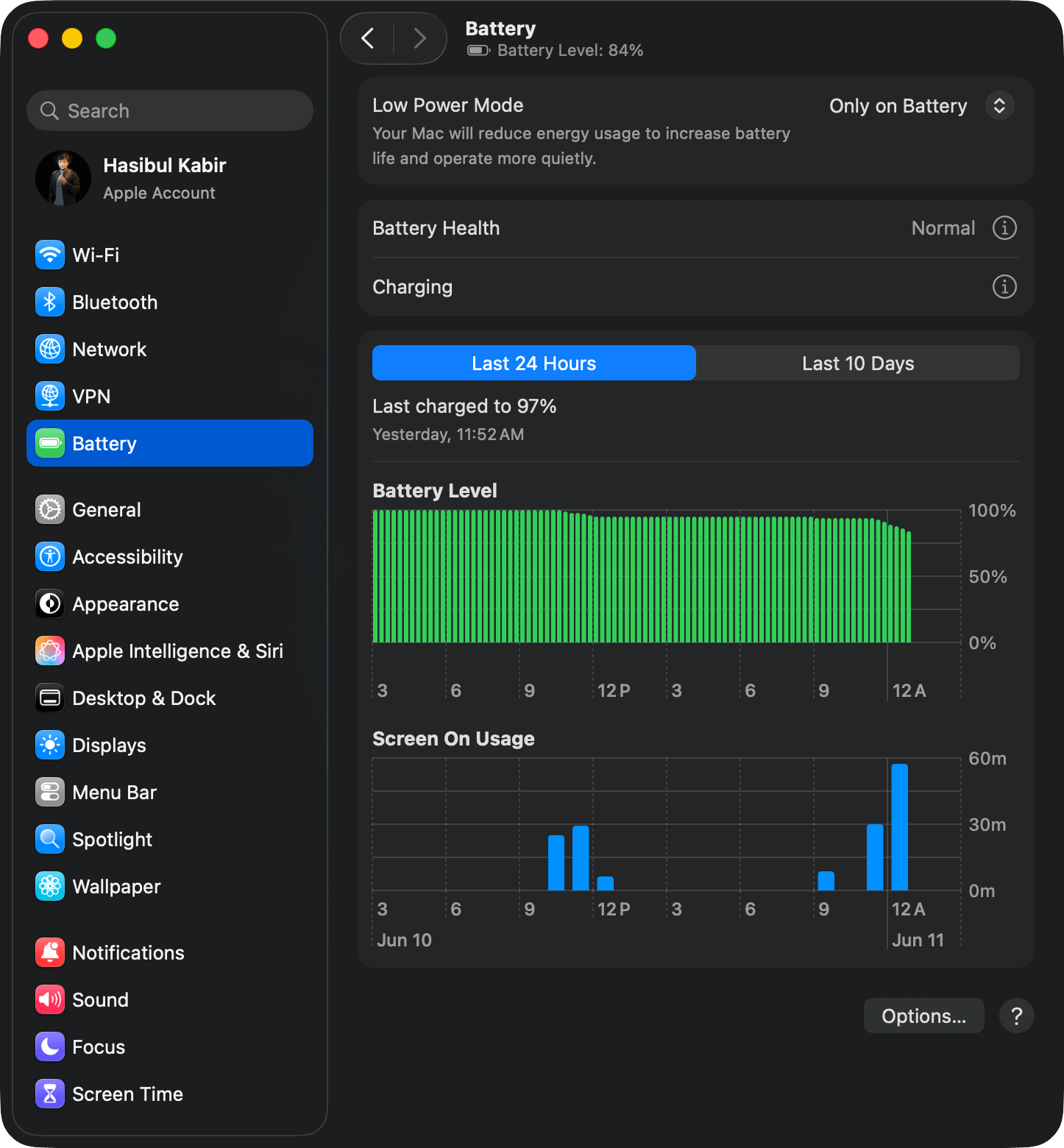
- Check your battery health under “System Settings > Battery” regularly and replace aging batteries before problems arise.
- Schedule periodic professional checkups if your MacBook is older than 3 years.
Note: You can get more about your Macbook's battery health by using software like Sensei.
A macbook swollen battery is an urgent and risky hardware issue that requires immediate action. Always stop using the device, handle it carefully, and consult Apple or an authorized service center for repairs or disposal.
Remember to take preventive steps to avoid future macbook swollen battery incidents and keep your device safe for years to come.